calrs
Fast, self-hostable scheduling. Like Cal.com, but written in Rust.
calrs is an open-source scheduling platform. Connect your CalDAV calendar (Nextcloud, Fastmail, BlueMind, iCloud…), define bookable meeting types, and share a link. No Node.js, no PostgreSQL, no subscription.
Key features
- CalDAV sync — pull events from any CalDAV server for free/busy computation, with multi-VEVENT support for recurring event modifications
- CalDAV write-back — confirmed bookings are automatically pushed to your calendar
- Availability engine — computes free slots from availability rules + calendar events
- Recurring events — RRULE expansion (DAILY/WEEKLY/MONTHLY with INTERVAL, UNTIL, COUNT, BYDAY, EXDATE) blocks availability correctly
- Event types — bookable meeting templates with duration, buffers, minimum notice
- Booking flow — public slot picker, booking form, email confirmations with
.icsinvites - Email approve/decline — approve or decline pending bookings directly from the notification email
- HTML emails — clean, responsive HTML notifications with plain text fallback
- Teams — unified scheduling across team members with round-robin or collective modes
- Timezone support — guest timezone picker with browser auto-detection; CalDAV events are converted from their original timezone to your host timezone, so availability is always accurate regardless of where your calendar events were created
- Authentication — local accounts (Argon2) or OIDC/SSO (Keycloak, Authentik, etc.)
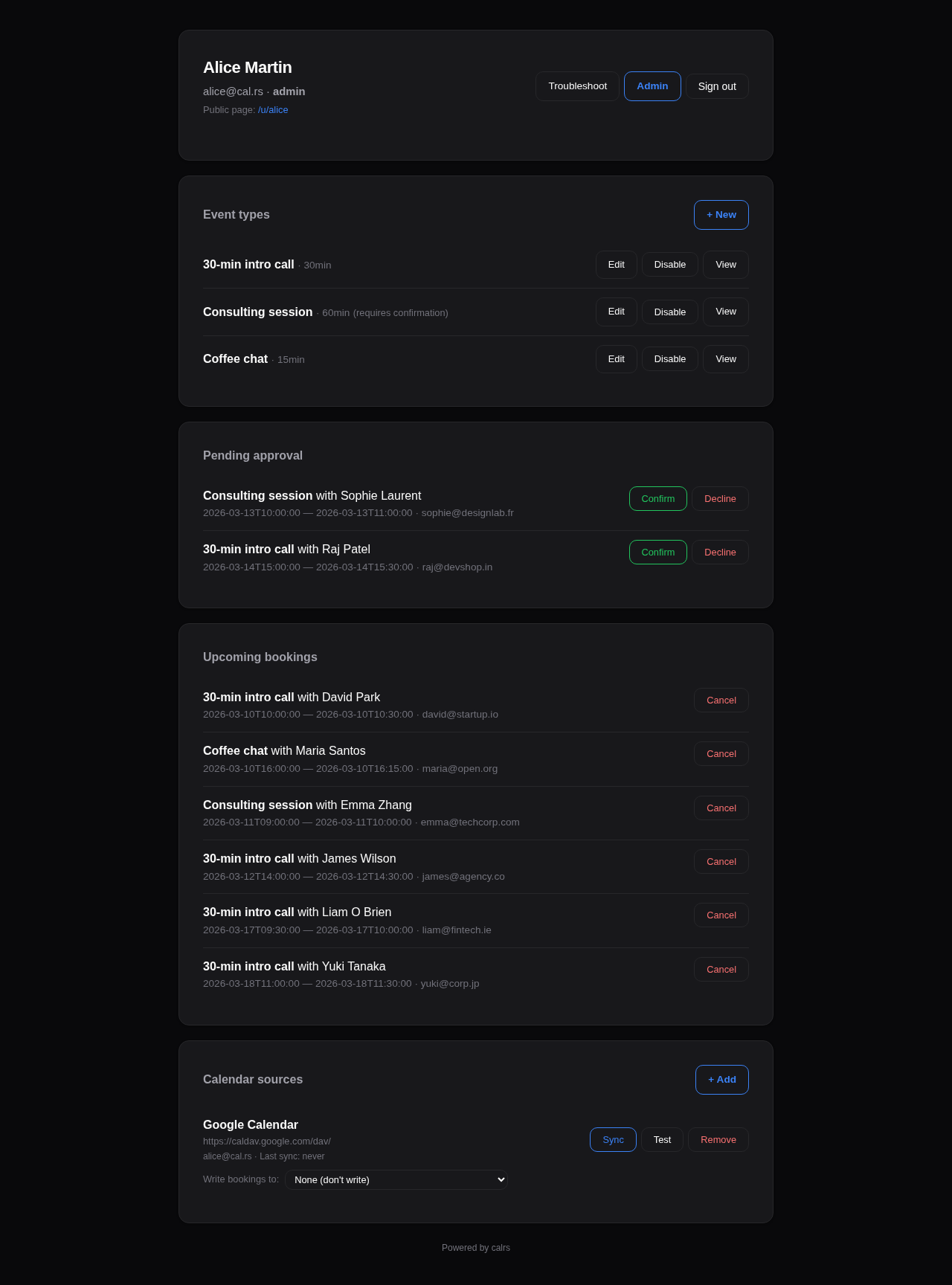
- Web dashboard — manage event types, calendar sources, pending approvals, bookings
- Dark/light theme — manual toggle (System/Light/Dark) on public pages and dashboard settings
- Admin panel — user management, auth settings, OIDC config, SMTP status, impersonation
- Structured logging —
tracing+tower-httpfor production observability, configurable viaRUST_LOG - Three-level visibility — public (listed on profile), internal (any team member generates invite links for external contacts), private (invite-only by owner)
- Availability overrides — block specific dates or set custom hours per event type
- Security hardening — CSRF protection, booking rate limiting, input validation, double-booking prevention
- Availability troubleshoot — visual timeline showing why slots are blocked
- SQLite storage — single-file WAL-mode database, zero ops
- Markdown descriptions — bold, italic, links, and inline code in user bio, event type descriptions, and team descriptions. Formatting toolbar with live preview on all description fields
- Onboarding — getting-started checklist and guided action cards on the dashboard overview
- Single binary — no runtime dependencies
How it works
- Connect your CalDAV calendar (or multiple calendars)
- Sync events so calrs knows when you’re busy
- Create event types with your availability schedule
- Share your booking link (
/u/yourname/meeting-slug) - Guests pick a slot, fill in their details, and book
- Both parties get an email with a calendar invite
- The booking appears on your CalDAV calendar automatically
License
AGPL-3.0 — free to use, modify, and self-host.
Getting Started
Installation
See Deployment for Docker, systemd, and binary install options.
For development:
cargo build --release
First-time setup
Option 1: Web UI (recommended)
- Start the server:
calrs serve --port 3000 - Open
http://localhost:3000in your browser - Register an account — the first user automatically becomes admin
- From the dashboard, add a CalDAV source and create your first event type
Option 2: CLI
# Create an admin user
calrs user create --email alice@example.com --name "Alice" --admin

# Connect your CalDAV calendar
calrs source add --url https://nextcloud.example.com/remote.php/dav \
                 --username alice --name "My Calendar"

# Pull events
calrs sync

# Create a bookable meeting type
calrs event-type create --title "30min intro call" --slug intro --duration 30

# Check available slots
calrs event-type slots intro

# Start the web server
calrs serve --port 3000
Environment variables
| Variable | Description | Default |
|---|---|---|
CALRS_DATA_DIR | Directory for the SQLite database | Platform-specific (XDG) |
CALRS_BASE_URL | Public URL (needed for OIDC callbacks and email action links) | http://localhost:3000 |
Data directory
calrs stores everything in a single SQLite database (calrs.db) inside the data directory. By default this follows XDG conventions:
- Linux:
~/.local/share/calrs/ - macOS:
~/Library/Application Support/calrs/
Override with CALRS_DATA_DIR or --data-dir.
Quick test
After setup, your booking page is available at:
/u/yourname— your profile listing all event types/u/yourname/intro— the slot picker for the “intro” event type
CalDAV Integration
calrs connects to any CalDAV server to read your calendar for free/busy computation and optionally write confirmed bookings back.
Connecting a calendar source
From the web dashboard
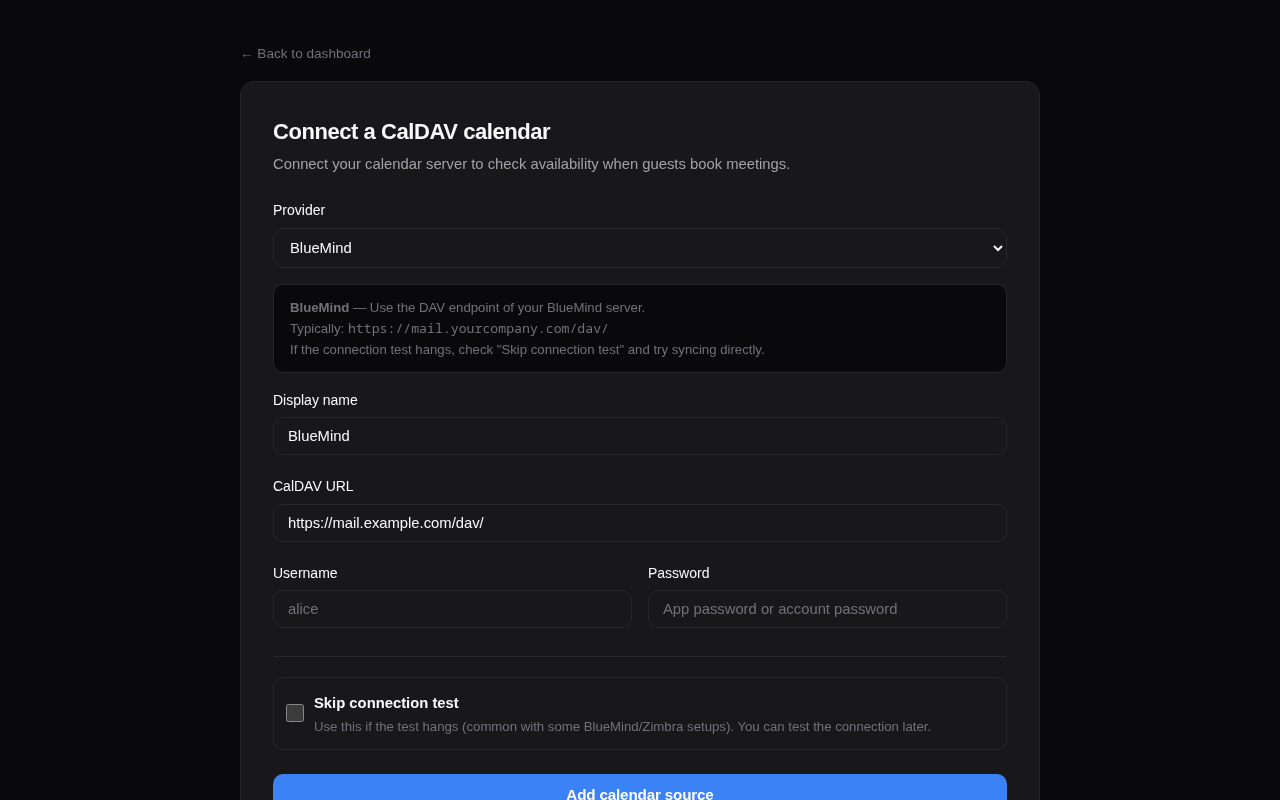
- Go to Dashboard > Calendar sources > + Add
- Select your provider (BlueMind, Nextcloud, Fastmail, etc.) — the URL is auto-filled
- Enter your username and password
- Click Add source
The connection is tested automatically before saving. Use “Skip connection test” if your server doesn’t respond to OPTIONS requests (e.g., BlueMind).
From the CLI
calrs source add --url https://nextcloud.example.com/remote.php/dav \
                 --username alice --name "Work Calendar"

# Skip connection test if needed
calrs source add --url https://mail.company.com/dav/ \
                 --username alice --name "BlueMind" --no-test
Provider URLs
| Provider | CalDAV URL |
|---|---|
| BlueMind | https://mail.yourcompany.com/dav/ |
| Nextcloud | https://cloud.example.com/remote.php/dav |
| Fastmail | https://caldav.fastmail.com/dav/calendars/user/you@fastmail.com/ |
| iCloud | https://caldav.icloud.com/ |
| Zimbra | https://mail.example.com/dav/ |
| SOGo | https://mail.example.com/SOGo/dav/ |
| Radicale | https://cal.example.com/ |
Tip: Use app-specific passwords for Fastmail and iCloud.
Google Calendar
Google Calendar connects via OAuth2, not a username/password. See Google Calendar for Cloud project setup, scopes, and Google Meet auto-links.
Auto-discovery
calrs follows the CalDAV standard (RFC 4791) for discovery:
- PROPFIND on the base URL to find the
current-user-principal - PROPFIND on the principal to find the
calendar-home-set - PROPFIND on the calendar home to list all calendars
- Filters to actual
calendarcollections (skips inbox, outbox, tasks, etc.)
Syncing
# Sync all sources
calrs sync

# Full re-sync (ignore sync tokens)
calrs sync --full
From the dashboard, click Sync on any source to trigger a sync.
Sync pulls all VEVENT data from your calendars and stores it in the local SQLite database. Events are upserted by UID (and RECURRENCE-ID for modified instances), so re-syncing is safe.
Multi-VEVENT resources
Some CalDAV servers (notably BlueMind) bundle recurring events and their modified instances into a single CalDAV resource containing multiple VEVENTs. calrs splits these and stores each VEVENT as a separate row:
- The parent event has the RRULE and is stored with its UID
- Modified instances have a RECURRENCE-ID and are stored alongside the parent with a composite unique key
(uid, recurrence_id) - This ensures modified occurrences correctly block (or free) availability
CalDAV write-back
When a booking is confirmed, calrs can automatically push it to your CalDAV calendar as a VEVENT. When a booking is cancelled, the event is deleted.
Setup
- Sync your calendar source at least once (so calrs knows which calendars exist)
- On the dashboard, find your source under “Calendar sources”
- Use the “Write bookings to” dropdown to select which calendar should receive bookings
- Select “None” to disable write-back
How it works
- On confirmation: calrs generates an ICS event and PUTs it to
{calendar-href}/{booking-uid}.ics - On cancellation: calrs DELETEs the event from the same path
- The booking tracks which calendar it was pushed to, so cancellation always targets the right calendar
- If no write calendar is configured, write-back is skipped and a warning is logged (emails still work)
- Write-back works for individual bookings, team bookings (the assigned member’s calendar for round-robin, every eligible member’s for collective), and pending-then-confirmed bookings
When a write-back fails
After each PUT, calrs reads the event back by UID (HEAD, or PROPFIND on servers that refuse HEAD; FindItem on EWS). A write the server refused, or accepted without the event becoming readable, counts as failed.
The booking stays confirmed: the slot is already blocked by calrs’s own bookings table and the guest already has the invitation, so refusing the booking after the fact would only leave the guest with an invite to a meeting that no longer exists. Instead:
- the failure is recorded on the booking, and the bookings dashboard shows a “not in your calendar” badge with the error
- the background task of
calrs serveretries it, for confirmed bookings that have not started yet: 5 min, 15 min, 30 min, 1 h, 2 h, 4 h and 8 h after the previous attempt, then it stops. A retry replaces the same event (the PUT is keyed on the booking UID), so retrying never duplicates it, and a cancelled booking is never retried - after three failed attempts (about 20 minutes) the host is emailed once, in their language, so they can add the event by hand. Retries carry on afterwards; a successful write clears the badge
When a sync fails
If a source cannot be synced (server down, password changed, OAuth access revoked), calrs keeps offering slots from the last successful sync rather than refusing every booking. The failure is not silent:
- the calendar sources page shows the error and since when the source has been failing
- once a source has failed at least 3 times in a row over more than an hour, its owner is emailed once, in their language. They hear about it again only if it recovers and later fails again
- a calendar that fails to fetch fails the sync of its source, so “Sync complete.” means every calendar synced
- slot pages retry a failing source at most every five minutes, so a dead server does not slow down every page load
calrs synclists the sources that failed and exits with status 1
Managing sources
# List all sources
calrs source list

# Test a connection
calrs source test <id-prefix>

# Remove a source (cascade-deletes calendars and events)
calrs source remove <id-prefix>
From the dashboard: Sync, Test, and Remove buttons are available for each source.
Credentials
Passwords are hex-encoded and stored in the SQLite database. This is not encryption — it prevents accidental display in logs but does not protect against database access. Secure your data directory appropriately.
Google Calendar
calrs can connect to Google Calendar as a CalDAV source using Google’s OAuth2 flow. Unlike a username/password source, Google requires you (the calrs operator) to register an OAuth2 application in Google Cloud and configure its client ID and secret in calrs once. After that, individual users connect their own Google accounts through the dashboard.
This page walks through the Google Cloud setup. The values you collect at the end go into Admin → Auth → Google OAuth2 in the calrs dashboard.
1. Pick (or create) a Google Cloud project
Go to the Google Cloud Console and either select an existing project or create a new one (e.g. calrs-prod). Everything below is scoped to this project.
The project is just a container for the OAuth2 client and the enabled APIs. You can use the same project for staging and production, or split them. It makes no functional difference to calrs.
2. Enable the required APIs
In APIs & Services → Library, enable:
- CalDAV API: used for CalDAV access to the user’s calendars (reading busy times and writing bookings back). It is a separate entry in the Library from the Calendar API; search for “CalDAV API”.
- Google Calendar API: used to attach Google Meet links to bookings (see Google Meet auto-links). Enable it even if you do not use Meet today, so the option works the day an event type switches to it.
- OIDC userinfo: Google exposes this automatically when you request the
openid emailscopes; there is no separate “API” to toggle, but the OAuth consent screen must allow those scopes (see step 5).
Without the CalDAV API enabled, every CalDAV request will fail with a 403 even though the OAuth2 handshake itself succeeds; enabling only the Google Calendar API is not enough. Without the Google Calendar API, bookings still sync and write back, but Google Meet links cannot be generated.
3. Create the OAuth2 client
In APIs & Services → Credentials, click Create credentials → OAuth client ID.
- Application type: Web application
- Name: anything (e.g.
calrs)
You will get a client ID and client secret. Both are stored encrypted in calrs (auth_config.google_oauth2_client_id / google_oauth2_client_secret) once you paste them into the admin panel.
4. Authorized redirect URI
Under Authorized redirect URIs, add exactly one entry:
{CALRS_BASE_URL}/dashboard/sources/google/callback
Replace {CALRS_BASE_URL} with the public URL of your calrs instance, e.g.:
https://cal.example.com/dashboard/sources/google/callback
Notes:
- The URI must match byte-for-byte. No trailing slash, correct scheme (
https://in production), correct host. Google rejects the callback otherwise. CALRS_BASE_URLis the same env var calrs uses for OIDC redirects and email links. Keep them consistent.- If you run multiple environments (staging + prod), either register the same client with multiple redirect URIs or create one OAuth2 client per environment.
You do not need to set “Authorized JavaScript origins”; calrs performs the redirect server-side.
5. Scopes calrs requests
When a user connects their Google account, calrs requests these scopes:
| Scope | Why |
|---|---|
https://www.googleapis.com/auth/calendar | Full read/write access to the user’s calendars via Google’s CalDAV endpoint. Needed both to read busy times and to push confirmed bookings back to the calendar. |
openid email | OpenID Connect userinfo, used once at connect time to discover the account’s email address. Google’s CalDAV principal URL is /caldav/v2/{userEmail}/user, so calrs needs to know which email to scope the source to. |
calrs also passes access_type=offline and prompt=consent so that Google issues a long-lived refresh token. The refresh token is stored encrypted and used to mint new access tokens as needed (existing tokens are rotated automatically).
On the OAuth consent screen configuration (APIs & Services → OAuth consent screen), add the Calendar scope explicitly. The openid and email scopes are listed under the “non-sensitive” defaults and don’t need additional review.
The same Calendar scope is enough to attach a Google Meet conference to a write-back event. No extra Meet scope, and users who already connected Google Calendar do not need to reconnect.
6. Test users vs. publishing the consent screen
While the OAuth consent screen is in Testing status, only accounts explicitly listed under Test users can complete the OAuth flow. Everyone else gets Error 403: access_denied at the Google consent page.
You have two options:
- Keep it in Testing if calrs is only used by a small, known group (say, a single team or family). Add each user’s Google email to the Test users list. Refresh tokens issued to test users expire after 7 days, so users will need to reconnect their source weekly.
- Publish the app (button on the OAuth consent screen page) for any larger or longer-running deployment. Because the Calendar scope is marked sensitive/restricted by Google, publishing triggers Google’s app verification process. They will ask for a homepage, privacy policy, branding assets, and (for restricted scopes) a security assessment. This can take weeks. Until verification completes, users see an “unverified app” warning but can still proceed via Advanced → Go to {app} (unsafe).
For a self-hosted instance used by you and a handful of people, the Testing mode + Test users approach is usually fine; just remember the 7-day refresh token expiry.
Google Meet auto-links
When an event type’s location is Google Meet (auto-generated link), confirmed bookings attempt to attach a unique Meet conference owned by the host, as long as that host still has Google Calendar connected with write-back:
- calrs writes the booking to the host’s Google write-back calendar (same CalDAV PUT as any other booking).
- It then calls Google Calendar API
events.patchwithconferenceData.createRequest(hangoutsMeet) using the host’s existing OAuth token. - The Meet URL is stored on
bookings.meeting_urland included in confirmation emails, the guest ICS, and CalDAV copies on any other calendars.
No extra OAuth scope or admin field is required beyond the setup above, as long as the Google Calendar API was enabled in step 2. Users who already connected Google Calendar do not reconnect.
Who owns the Meet
| Booking | Meet owner |
|---|---|
| Personal event type | The event type owner |
| Team round-robin | The assigned member |
| Team collective | The first eligible member by name when the booking was made (same person as the calendar ORGANIZER, kept even if the team changes later) |
Dynamic group (/u/alice+bob/...) | The event type owner (first username). Checked on the slots page so the guest is not asked to fill the form first. Other participants do not need Google connected. |
The conference is created with that person’s token on their write-back calendar, so they see the native “Join with Google Meet” button in Google Calendar.
Save-time gate
You cannot save an event type as Google Meet unless every scheduling-relevant host already has Google Calendar connected and has picked a write-back calendar:
- Personal: you
- Team: every eligible member (enabled, non-zero weight)
The form lists anyone still missing. If someone later disconnects Google, the booking still confirms; confirmation and email show a “Google Meet” label if minting failed (the Meet URL is omitted and a warning is logged, same as a failed meeting webhook).
Reschedule and cancel
Reschedule keeps the same Meet URL and patches only the event times via Calendar API (a second CalDAV PUT would strip the conference). Cancel still deletes {uid}.ics over CalDAV, which removes the Google event and its Meet.
That time patch is the host’s only copy of the booking, so it is retried three times a second apart. If it still fails, the host is emailed: the booking, the guest’s invite and the reminders hold the new time while their Google Calendar holds the old one, and they need to move the event by hand. Move it rather than recreating it, or the Meet link the guest already has stops admitting anyone.
Event Types
Event types are bookable meeting templates. Each one defines the duration, availability schedule, and booking rules.
Meeting types overview
calrs supports seven distinct booking scenarios:
| Type | Who books? | How? | Assigned to | Use case |
|---|---|---|---|---|
| Personal (public) | Anyone | Listed on your profile | You | Freelancer’s “30min intro call” |
| Personal (internal) | Invited guests | Any colleague generates a link | You | Senior engineer: teammates share a “Code Review” link with external contributors |
| Personal (private) | Invited guests | You send an invite link | You | Executive coaching for selected clients |
| Team (public) | Anyone | Listed on team page | Round-robin | Public support call page |
| Team (internal) | Invited guests | Any employee generates a link | Round-robin | Cross-team: Sales shares Support links with customers |
| Team (private) | Invited guests | Owner sends invite links | Round-robin | Demo team sends links to qualified leads |
| Dynamic group | Anyone with the URL | Ad-hoc link: /u/alice+bob/slug | Event type owner | One-off sales call needing engineering support |
Personal vs team: Personal event types book time on your calendar only. Team event types show combined availability (any member free) and assign the booking to the least-busy member via round-robin.
Dynamic group links: Ad-hoc collective meetings without creating a team — see Dynamic group links below.
Multi-timezone teams: For teams spread across timezones, set a wide availability window (e.g., 06:00–23:00) and let each member’s synced CalDAV calendar handle the blocking. The slot picker naturally shows the union of all members’ real availability — see Teams > Multi-timezone teams for details.
Creating an event type
From the dashboard
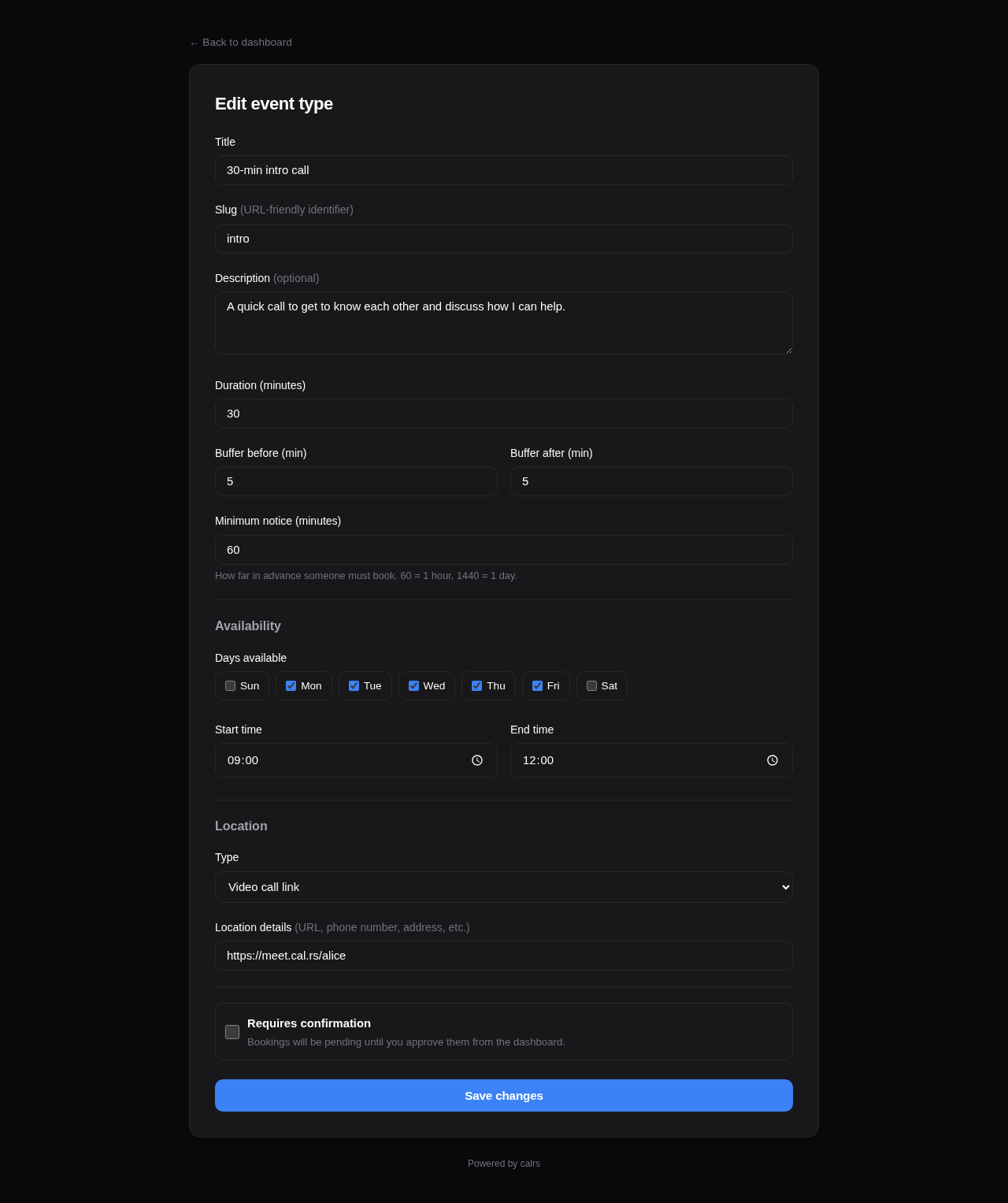
Go to Dashboard > Event types > + New and fill in:
- Title — display name (e.g., “30-minute intro call”)
- Slug — URL path (e.g.,
introgives/u/yourname/intro) - Duration — meeting length in minutes
- Slot interval — how often slots start (optional; leave blank to match duration — see Slot interval below)
- Buffer before/after — padding between meetings (prevents back-to-back bookings)
- Minimum notice — how far in advance guests must book (in minutes)
- Requires confirmation — if checked, bookings start as “pending” and you approve from the dashboard or the email. Two more settings appear: Pending requests block the time slot (on by default) and Request expiry (how long a request may wait before it is declined automatically). See Confirmation mode.
- Additional guests — allow guests to invite additional attendees (0, 1, 3, 5, or 10 max)
- Location — video link, phone number, in-person address, or custom text
- Availability schedule — which days and hours you’re available
Description fields support Markdown formatting (bold, italic, links) with a toolbar and live preview.
From the CLI
calrs event-type create \
  --title "30min intro call" \
  --slug intro \
  --duration 30 \
  --buffer-before 5 \
  --buffer-after 5
Calendar selection
When you have multiple CalDAV calendars, you can choose which calendars block availability for each event type. For example, a “Work meeting” event type can check only the work calendar, while a “Personal chat” checks only the personal calendar.
From the dashboard form, select the calendars under the Calendars section. Only calendars marked as “busy” (is_busy=1) appear.
Default behavior: If no calendars are selected, all busy calendars are checked — same as before. This is fully backward-compatible.
Required resources
Event types can require shared resources (a demo lab, a meeting room). A busy resource blocks booking slots, and confirmed bookings can reserve the resource in its own CalDAV calendar.
Whether a busy resource blocks a slot depends on the resource scheduling mode: in all mode every attached resource must be free, while in round-robin mode the slot survives as long as at least one attached resource is free.
The Required resources section of the event type form is visible to global admins, and to team admins on team event types when their team is allowlisted for a resource. See Shared Resources for the full behavior, including the “all” vs “round-robin” scheduling modes.
SMS notifications
Each event type decides whether the booking form asks the guest for a phone number, and whether it insists:
| Mode | Booking form | Effect |
|---|---|---|
| Off (default) | No phone field | No SMS, ever |
| Optional | Field shown, may be left empty | Guests who leave a number are texted when the booking is confirmed, moved, cancelled, or about to start |
| Required | Field shown and enforced | The booking cannot be submitted without a number |
The setting only appears when an SMS gateway is configured for the instance and you are permitted to change it: by default that means global admins only. See SMS Notifications.
Availability schedule
Each event type has its own availability rules. By default: Monday–Friday, 09:00–17:00.
From the dashboard form, you can set:
- Which days of the week are available (checkboxes)
- Start and end time for available hours
The availability engine intersects these rules with your synced calendar events (filtered by selected calendars) and existing bookings to compute free slots.
Booking limits
Control how slots are displayed and how often the event type can be booked.
One slot per day
Enable “One slot per day” to show only the earliest available time each day. The guest sees one slot per day instead of all available windows — useful for daily standups, check-ins, or any event where you want at most one booking per day.
Frequency limits
Enable “Limit booking frequency” to cap how many bookings can be made per time period. You can combine multiple limits — for example, max 2 per day AND 8 per week. Available periods: day, week, month, year. When a limit is reached, the booking form rejects new bookings for that period.
Both settings are configured via toggle switches in the Booking limits card of the event type form.
Booking horizon
Booking horizon caps how far into the future a guest may book, as a rolling window of days. A “Sales intro” might stay bookable 14 days ahead while an “Annual review” stays open indefinitely.
The field lives in the Buffers & notice card of the event type form:
| Value | Meaning |
|---|---|
| (empty) | No limit — guests can book arbitrarily far ahead. This is the default and the existing behaviour. |
0 | Today only. |
14 | Today plus the next 14 days, inclusive. |
The window is measured in the event type’s own timezone, so hosts either side of the date line get the day they expect. The month arrow on the booking page disappears once the next month starts past the horizon, and calrs event-type slots clamps its --days window to match.
The limit is enforced when the booking is submitted, not just when slots are drawn, so a crafted request cannot book past it. Minimum notice and the horizon are independent: if minimum notice pushes the earliest bookable slot past the horizon, the event type simply has no bookable slots and the page shows its normal empty state.
Calendar views
The guest slot picker supports three views, switchable via icons in the calendar header:
| View | Description |
|---|---|
| Month (default) | Month calendar grid with a slot list panel on the right |
| Week | 7-day columns with time slots listed under each day |
| Column | Days listed as rows with all time slot pills inline |
The guest’s chosen view is remembered in their browser. Hosts can set which view guests see by default from the Booking options card in the event type form.
Slot interval
By default, slot start times are spaced by the event’s duration — a 20-minute event produces slots at 9:00, 9:20, 9:40, and so on. The Slot interval field decouples start-time spacing from meeting length.
| Duration | Slot interval | Slot start times |
|---|---|---|
| 20 min | (blank — default) | 9:00, 9:20, 9:40, 10:00, … |
| 20 min | 30 | 9:00, 9:30, 10:00, 10:30, … (10-minute gap between meetings) |
| 45 min | 60 | 9:00, 10:00, 11:00, … (rounded hourly starts) |
| 60 min | 30 | 9:00, 9:30, 10:00, 10:30, … (overlap-allowed cadence — slots still honour busy times and buffers) |
Set this when you want “every half hour on the dot” or similar rounded start times regardless of meeting length. Leave blank to preserve the legacy back-to-back behaviour. Buffers and minimum notice still apply on top.
Slot computation
Available slots are computed by:
- Generating candidate slots from availability rules (day of week + time range)
- Filtering out slots that overlap with calendar events (from CalDAV sync)
- Filtering out slots that overlap with confirmed bookings
- Filtering out slots blocked by required shared resources (all mode: any busy resource blocks; round-robin mode: blocked only when every resource is busy)
- Applying buffer times (before and after each slot)
- Removing slots that violate minimum notice (too close to now)
- Removing days past the booking horizon (too far ahead)
- If “one slot per day” is enabled, keeping only the earliest slot per day
# View available slots for the next 7 days
calrs event-type slots intro

# View slots for the next 14 days
calrs event-type slots intro --days 14
Location
Event types support these location types:
| Type | Description |
|---|---|
link | Static video meeting URL (Zoom, a standing Meet room, etc.) |
jitsi_auto | Fresh Jitsi room URL per confirmed booking (pattern configured in Admin) |
webhook_auto | calrs POSTs the booking to an admin-configured URL and uses the returned { "url": "..." } |
google_meet | Fresh Google Meet conference owned by the host, attached to their Google Calendar event. Requires Google Calendar OAuth2 with write-back. See Google Calendar. |
phone | Phone number |
in_person | Physical address |
custom | Free-text description |
The location is displayed on the public booking page, in confirmation emails, and in .ics calendar invites.
Auto providers (jitsi_auto, webhook_auto, google_meet) mint the URL only when the booking is confirmed. Pending bookings do not get a link (so a declined request never creates a Meet or hits the webhook). The same Meet URL is kept on reschedule.
Saving an event type as google_meet is rejected unless every scheduling-relevant host already has Google Calendar connected with a write-back calendar selected (you, for a personal event type; every eligible team member for a team event type).
Enabling/disabling
Event types can be toggled on/off from the dashboard without deleting them. Disabled event types don’t show up on your public profile and return 404 on their booking page.
Visibility
Event types have three visibility levels, set from the Visibility dropdown in the event type form:
| Level | Available for | Listed publicly? | Who can create invite links? | Badge |
|---|---|---|---|---|
| Public | Personal + Team | Yes | N/A (no invite needed) | (none) |
| Internal | Personal + Team | No | Any authenticated user | blue “internal” |
| Private | Personal + Team | No | Event type owner only | indigo “private” |
Internal event types
Internal visibility is designed for cross-team and cross-person booking within an organization. It is available for both personal and team event types.
Typical use case (team): A Support team creates an internal “Support Call” event type. When a Sales rep needs to put a customer in touch with Support, they go to the Invite Links page, click “Get link” next to “Support Call”, and paste the generated URL in a Slack message or email to the customer. The customer clicks the link, picks a slot, and books — the link expires after 7 days and can’t be reused.
Typical use case (personal): A senior engineer creates an internal “Code Review” event type. Any teammate can generate a one-time link from the Invite Links page and share it with an external contributor who needs a review session.
The Invite Links page (/dashboard/organization) lists all internal event types across the organization — both personal and team. Each event type has:
- Get link — generates a single-use invite link (expires in 7 days) and copies it to clipboard
- Invites — opens the full invite management page for custom expiry, multi-use links, and guest pre-fill
Internal vs private: Internal lets any colleague generate links on the fly — ideal for cross-org services like support, IT help desk, or personal event types that colleagues need to share on your behalf. Private restricts link distribution to the event type owner only — better when you want controlled access. See Teams > Private teams vs internal vs private event types for a detailed comparison.
Private event types
Private event types are hidden from public pages and only accessible via invite links sent by the event type owner or team admin.
Typical use case: A demo team creates a private team event type. Sales reps send personalized invites to qualified leads. The demo is automatically assigned to the least-busy team member via round-robin.
Invite links
Both internal and private event types use booking invites to grant access:
- Go to Dashboard > Event Types (or Organization) and click Invite
- Fill in the guest’s name, email, and an optional personal message
- Choose an expiration (7, 14, or 30 days, or never) and whether to allow multiple bookings
- Click Send invite — the guest receives an email with a personalized booking link
The invite link takes the guest directly to the slot picker with the invite token embedded. Their name and email are pre-filled on the booking form. The token is validated at every step (expired, used-up, or invalid tokens are rejected).
Invite management
The invite management page (/dashboard/invites/{event_type_id}) shows:
- A “Get link” button at the top for one-click link generation — generates a single-use invite URL and copies it to your clipboard. No email form needed
- A form to send invites via email (with guest name, email, message, expiry, and usage options)
- A list of sent invites with status badges:
- Active — invite is valid and unused (or has remaining uses)
- Expired — past the expiration date
- Used — all uses consumed (for single-use invites)
- Delete button to revoke an invite
Availability overrides
Block specific dates or set custom hours per event type — perfect for holidays, conferences, or one-off schedule changes.
Go to Dashboard > Event Types > Overrides and add:
- Block entire day — no slots available on that date (e.g., company holiday)
- Custom hours — replace the weekly rules with specific time windows for that date (e.g., 08:00–12:00 only)
Multiple custom hour windows can be added for the same date (e.g., morning + afternoon with a lunch break). Overrides are visible in the Troubleshoot view with a banner showing when they’re active.
Public URLs
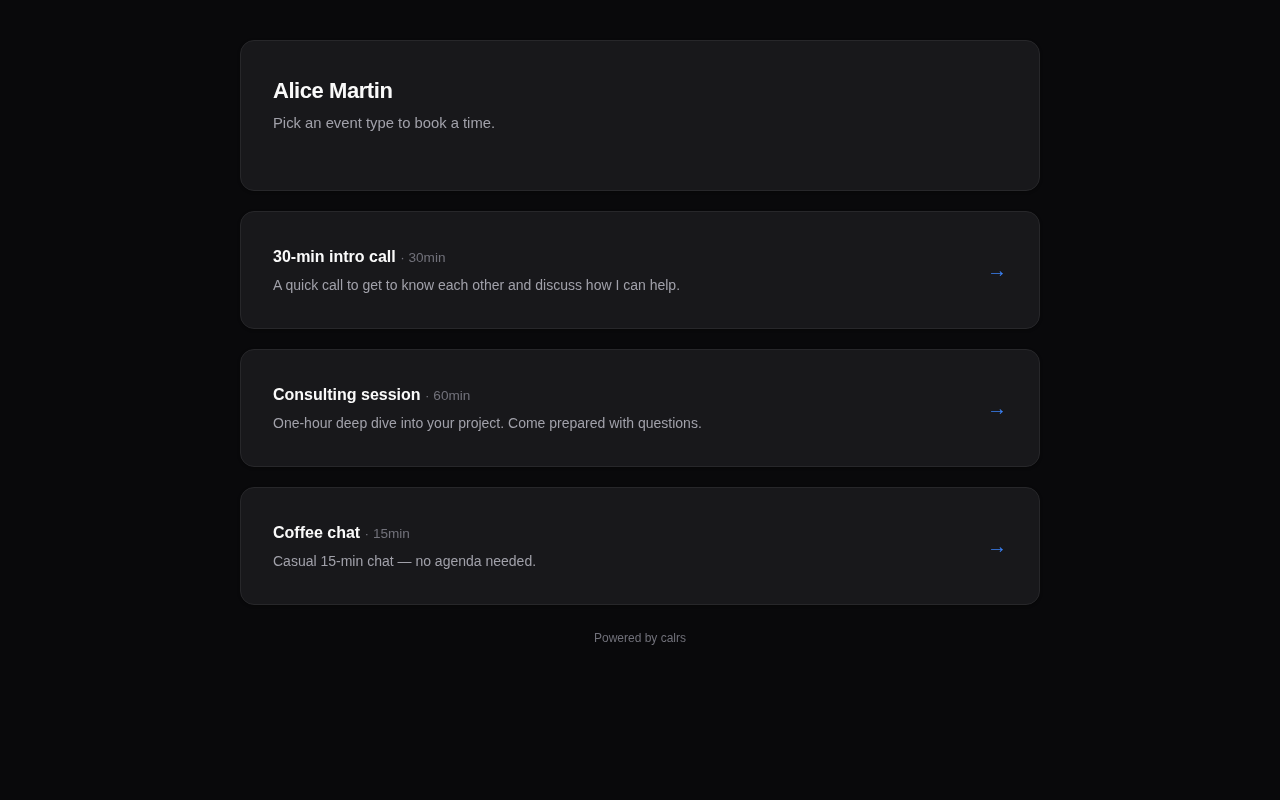
- Profile:
/u/yourname— lists all enabled, non-private event types - Slot picker:
/u/yourname/slug— shows available time slots - Booking form:
/u/yourname/slug/book?date=...&time=...— booking form for a specific slot - Invite booking: same URLs with
?invite={token}— for private event types accessed via invite links - Dynamic group:
/u/alice+bob+carol/slug— collective availability across multiple users (see below)
Dynamic group links
Dynamic group links let you create ad-hoc collective meetings by combining usernames in the URL — no team setup required.
How it works
Take any public event type URL and add other usernames with +:
/u/alice/intro                → individual booking (Alice only)
/u/alice+bob/intro            → collective booking (Alice & Bob)
/u/alice+bob+carol/intro      → collective booking (Alice, Bob & Carol)
The first username owns the event type. Their event type settings (duration, buffer, availability rules) define the meeting. All participants’ calendars are checked — only slots where everyone is free are shown.
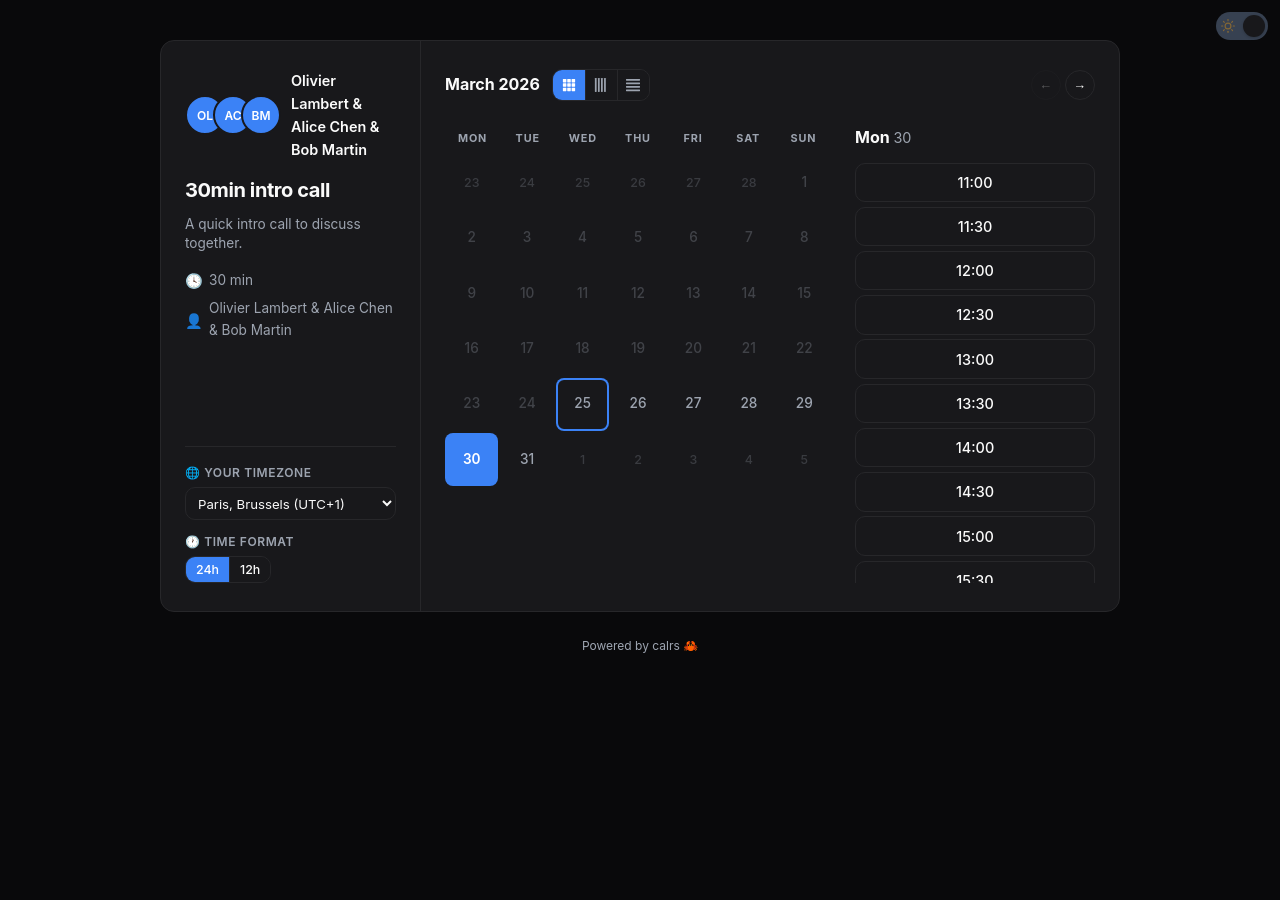
Building a dynamic group link
From the event type edit page, public personal event types show a Dynamic Group Link card at the bottom. Type a username to search — only users who have opted in are shown. Click to add them, and the URL is built live with a copy button.
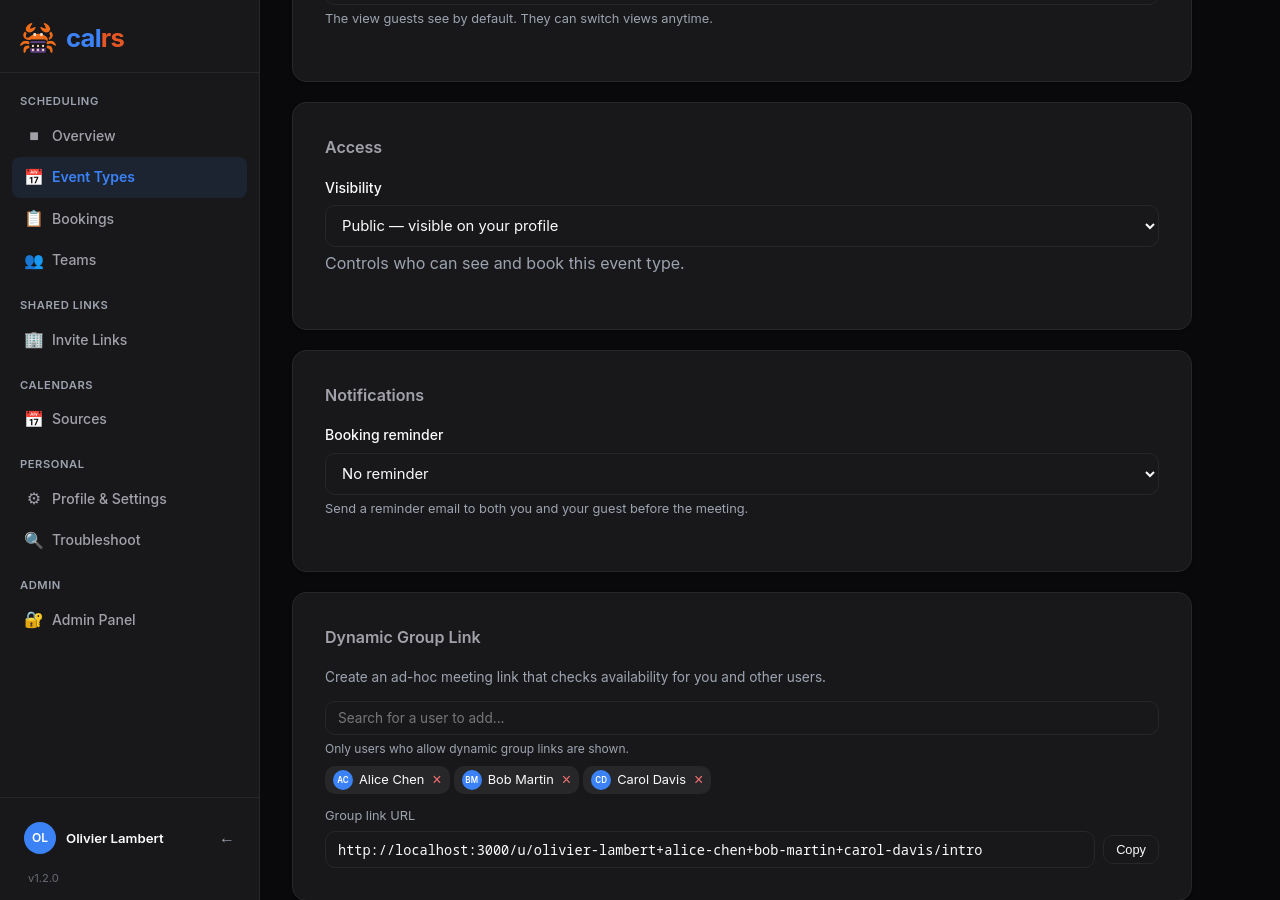
Opt-out
Users can disable being included in dynamic group links from Profile & Settings. The checkbox “Allow others to include me in dynamic group links” is enabled by default. When disabled, the user won’t appear in the search dropdown and any URL containing their username will show an error.
CalDAV write-back
When a dynamic group booking is confirmed:
- The event is written to the first user’s (event type owner’s) CalDAV calendar
- Other participants are added as
ATTENDEEin the ICS event - CalDAV servers that support scheduling (Nextcloud, SOGo, etc.) automatically propagate the invite to participants’ calendars
Constraints
- Only works with public event types (not internal or private)
- Requires at least two usernames in the URL
- All users must have
allow_dynamic_groupenabled
Booking Flow
Guest experience
- Visit the booking page —
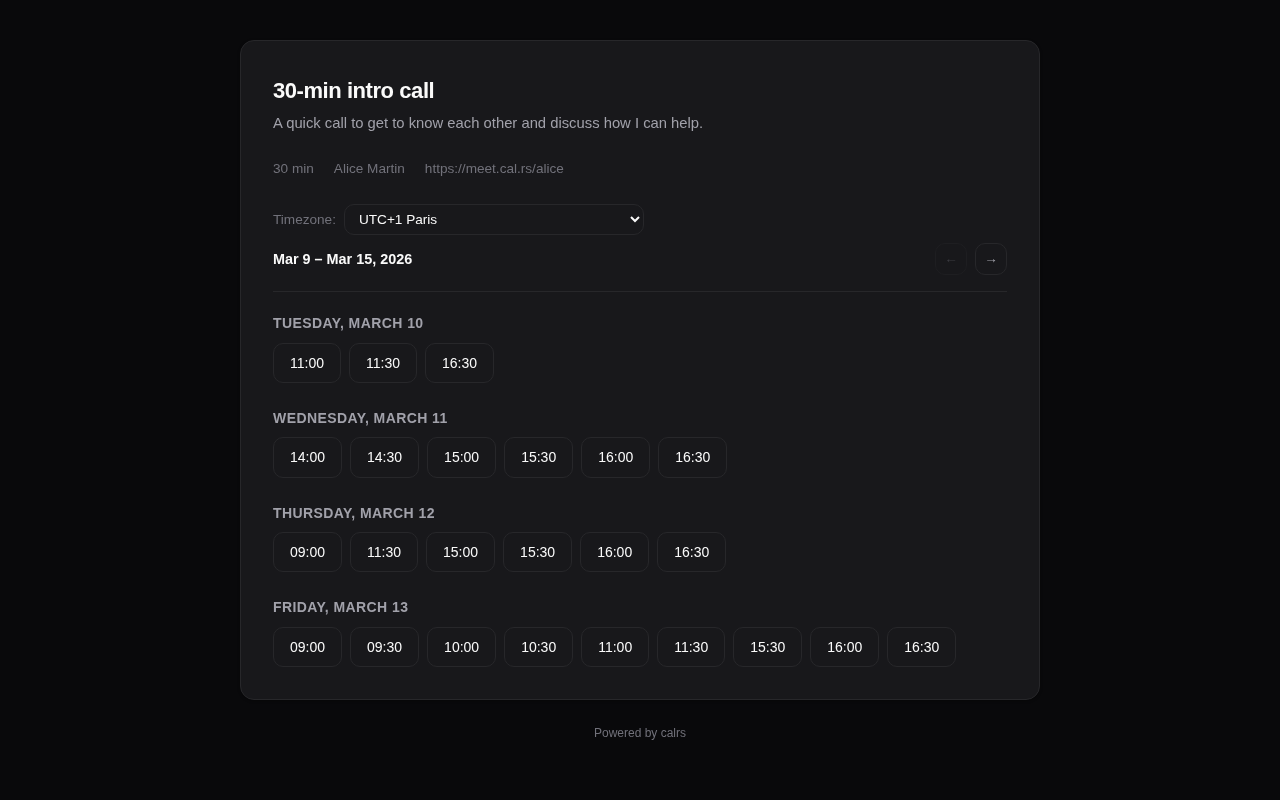
/u/host/meeting-slug(or via an invite link for private event types, or/u/host+other/slugfor dynamic group links) - Pick a timezone — auto-detected from the browser, changeable via dropdown
- Browse available slots — displayed as a week view, navigate with Previous/Next buttons
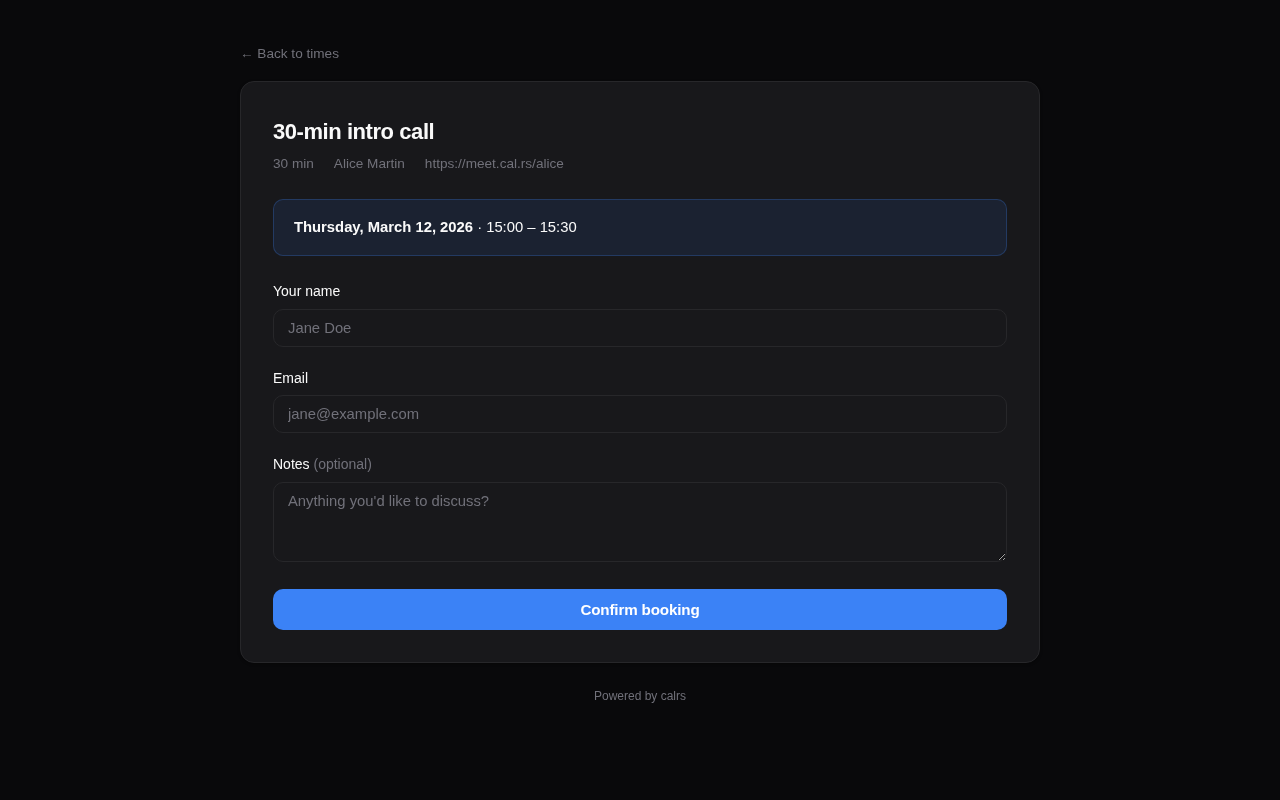
- Click a slot — opens the booking form
- Fill in details — name, email, optional notes (pre-filled from invite if applicable)
- Add guests — optionally invite additional attendees (if the event type allows it)
- Submit — booking is created
- Confirmation page — shows booking summary (including any additional attendees)
- Email — guest and any additional attendees receive a confirmation email with an
.icscalendar invite attached
Timezones and existing installations
New bookings store UTC timestamps. Availability rules remain in the event type’s
IANA timezone, and guests see times in their selected timezone. The dashboard
uses the host’s profile timezone. Changing those settings does not move a new
booking’s actual start or end time; the server’s timezone does not determine it.
The CLI interprets booking create --date ... --time ... in --timezone (UTC by
default), then checks availability in the event timezone.
Upgrading adds a storage-version field automatically. Existing bookings retain their original timestamps and legacy interpretation: there is no bulk conversion, manual migration, notification, or calendar rewrite. Historical timezone mistakes are not repaired automatically. Rescheduling an existing booking stores the newly selected time in UTC; cancelling it leaves its timestamps unchanged.
Back up the database before upgrading as usual. Older binaries do not understand the new storage format; reverting to one after creating UTC bookings requires restoring the pre-upgrade backup, which loses bookings created since that backup.
Ambiguous or nonexistent local start times during daylight-saving transitions are rejected instead of silently choosing an instant. Calendar attachments for new bookings carry both exact UTC endpoints, including across midnight and clock changes. Meeting-provider webhooks likewise receive explicit UTC timestamps for new bookings (legacy bookings retain the previous format).
Clock changes
Durations and minimum notice use elapsed time. The slot picker omits nonexistent or ambiguous local starts, since booking forms do not carry a DST-fold marker. Conflict checks retain the existing wall-clock availability engine: a UTC booking that crosses a backward clock change blocks a conservative envelope covering both occurrences of the repeated hour. This can hide otherwise free slots around the transition, but prevents a reversed local interval from allowing double-booking. Host email text and calendar attachments use the exact UTC endpoints for new rows.
Booking statuses
| Status | Description |
|---|---|
confirmed | Booking is active. Slot is blocked. Emails sent. |
pending | Awaiting host approval (when requires_confirmation is on). Blocks the slot unless the event type turns that off. |
cancelled | Cancelled by host or guest. Slot is freed. |
declined | Declined by host, or expired before the host answered. |
Confirmation mode
When an event type has requires confirmation enabled:
- Guest submits booking → status is
pending - Guest receives a “pending” email (no
.icsyet) - Host receives an “approval request” email with Approve and Decline buttons
- Host can approve/decline in two ways:
- From the email — click the Approve or Decline button (no login required, token-based)
- From the dashboard — go to Pending approval section and click Confirm or Decline
- On confirm: status becomes
confirmed, guest receives confirmation email with.ics, booking is pushed to CalDAV. Auto meeting links (Jitsi, webhook, Google Meet) are generated at this moment, not while the booking is pending. - On decline: status becomes
declined, guest receives a decline notification with optional reason
Before confirming, both approval paths check that the host is still free at that time (the assigned member for round-robin, every member for collective): a calendar event or a confirmed booking that appeared in the meantime makes the approval fail with an explanation instead of double-booking the host. Other pending requests do not count here, so when two requests overlap the host can approve either one; the other is then refused.
Pending requests hold the slot
By default a pending request blocks its host’s time exactly like a confirmed booking: the slot disappears from the booking page, and overlapping slots on the host’s other event types disappear too, so a second guest is never offered a time that is already requested. Uncheck Pending requests block the time slot in the event type form to let other guests request the same time (the first approved wins; the database still refuses two bookings on the exact same slot).
Request expiry
Request expiry (never, 4, 24, 48 or 72 hours; 24 for new event types, never for event types that existed before the setting) bounds how long a request may wait. The deadline is set when the request is made. It never runs later than the latest moment another guest could still book the slot (start minus the minimum notice), since expiring after that point frees nothing. A request made inside that window (the guest booked right at the minimum notice) keeps the expiry, capped by the meeting start, rather than lapsing minutes later. A guest reschedule that puts the booking back to pending restarts it.
- Halfway to the deadline, the host gets one reminder with the Approve and Decline buttons.
- At the deadline the request is declined, never accepted. The guest receives an email in the language they booked in (and an SMS when the event type collects phone numbers) asking them to pick another time, with a link to the booking page when the event type is public and
CALRS_BASE_URLis set. The host gets a short notice.
The check runs in the same background task as reminders, once a minute.
Note: The email action buttons require
CALRS_BASE_URLto be set. Without it, the host must use the dashboard.
Cancellation
From the dashboard, click Cancel on an upcoming booking:
- Optionally enter a reason
- Confirm the cancellation
- Both guest and host receive cancellation emails with a
METHOD:CANCEL.icsattachment - If the booking was pushed to CalDAV, the event is deleted from the calendar
Guest self-cancellation
Guests can cancel their own bookings via a link in the confirmation email:
- Click the “Cancel booking” link in the email
- Optionally enter a reason
- Confirm the cancellation
- Both guest and host are notified
The cancellation email correctly attributes who cancelled (host vs guest).
Reschedule
Bookings can be rescheduled without cancelling and rebooking. Both guests and hosts can initiate a reschedule.
Guest reschedule
Guests can reschedule their booking via the reschedule link in the confirmation or pending email:
- Click the “Reschedule” button in the email
- Pick a new time slot from the slot picker (the current booking’s slot is freed so it remains available)
- Confirm the new time
- The booking moves to
pendingstatus — the host must approve via email or dashboard. The request expiry starts over from the reschedule. - If the booking was previously pushed to CalDAV, the event is removed (re-pushed on approval)
Host reschedule
Hosts can reschedule from the dashboard:
- Go to Dashboard > Bookings and click Reschedule on a booking
- Pick a new time slot
- Confirm the new time
- The booking stays
confirmed— no approval needed - The CalDAV event is updated in place (same UID). Google Meet bookings keep the existing Meet link; only the event times are patched.
- The guest receives a reschedule notification with the updated
.icsinvite
Token regeneration
After each reschedule, the reschedule_token, cancel_token, and confirm_token are regenerated. This invalidates any previous email links, ensuring only the latest links work.
Edge cases
- Already cancelled/declined bookings cannot be rescheduled (error page shown)
- Self-conflict is handled: the booking being rescheduled doesn’t block its own new slot
- Group bookings keep the original
assigned_user_id(no re-running round-robin) - Reminder state is reset:
reminder_sent_atis cleared so a new reminder is sent for the updated time
Notice window policy
By default, guests can cancel or reschedule via their tokenized email links at any time, including a few minutes before the meeting starts. This leaves hosts with same-day calendar holes that cannot be re-filled.
Per event type, you can require a minimum lead time before guests can take either action:
- Minimum notice to cancel — gates
/booking/cancel/{token}(both the form and the submission). - Minimum notice to reschedule — gates
/booking/reschedule/{token}(both the slot picker and the submission).
Each is set from the event type form with a numeric value plus a unit selector (minutes / hours / days). Empty means no restriction (the previous behaviour).
Within the configured window, the guest sees a friendly page showing the host’s contact email instead of a working form. The booking is unchanged. If the policy is set, it is also surfaced inline on the confirmation page and in the confirmation email so the guest is warned upfront.
The check applies to guest-side actions only. Hosts and admins can still cancel or reschedule from the dashboard at any time, since real-world emergencies often require host action on behalf of the guest. The notice window is not enforced on host paths.
Conflict detection
Before a booking is accepted, calrs checks for conflicts:
- Calendar events — from synced CalDAV sources
- Existing bookings — confirmed bookings on any event type
- Buffer times — the buffer before/after is included in the conflict window
- Minimum notice — slots too close to the current time are rejected
Additionally, a database-level unique index prevents two bookings from occupying the same slot, even if two guests submit simultaneously. On round-robin team event types the uniqueness is per assigned member, so two guests can book the same time as long as different members take the bookings.
CalDAV write-back
When a booking is confirmed (either directly or via approval), calrs can push the event to the host’s CalDAV calendar. For team event types the host is the assigned member (round-robin), or every eligible member (collective: enabled members with a non-zero per-event-type weight, the same set the slot grid checks). See CalDAV Integration > Write-back for setup.
The event’s ORGANIZER is the host: the assigned member, or for a collective booking the first eligible member by name, with every member’s name joined. A collective or dynamic group booking stores that organizer when it is created and keeps it for every later update (approval, reschedule, claim, retry), even if the team changes in the meantime: Google CalDAV refuses an update that changes an existing event’s organizer. Bookings made before calrs stored it (migration 070) still resolve it from the current roster.
Email notifications
If SMTP is configured, calrs sends emails at these moments:
| Event | Guest receives | Host receives |
|---|---|---|
| Booking confirmed | Confirmation + .ics REQUEST | Notification + .ics REQUEST |
| Booking pending | “Awaiting confirmation” notice | Approval request with Approve/Decline buttons |
| Booking declined | Decline notice (with optional reason) | — |
| Booking cancelled | Cancellation + .ics CANCEL | Cancellation + .ics CANCEL |
| Booking rescheduled (by host) | Reschedule notification + updated .ics | — |
| Reschedule request (by guest) | “Pending” notice with updated time | Reschedule approval request with Approve/Decline buttons |
| Booking reminder | Reminder with cancel button | Reminder with details |
| Invite sent | Invite email with booking link | — |
All emails are sent as HTML with plain text fallback. They include event title, date, time, timezone, location, and notes. The HTML templates are responsive and support dark mode in email clients that honor prefers-color-scheme.
Email language
Every email is written in its reader’s language, in any of the languages calrs ships:
- Guests (and the additional attendees they add) get the language the booking page was shown in when they booked, whoever triggers the email. That is the guest’s browser language, unless the host chose Always my language under Public booking page language in Profile & Settings: their own booking pages (
/u/{username}, and the legacy/{slug}routes), and so their guests’ emails, then use the host’s own saved language. Being logged in to calrs does not change the language of a booking page: it follows the browser the booking is made from, so a staff member booking on a client’s behalf books in their own browser’s language, not their saved calrs preference. To reach a client in another language, book from a browser set to it, or send the client the booking link. The email goes out whoever triggers it: the guest themselves, the host approving, declining, cancelling or asking for a new time, the reminder task, or a calendar sync noticing the host deleted the event. - Hosts, team members and watchers get the language they chose in Profile & Settings. With none set, they get English. On a collective team booking each member receives the host email in their own language.
- The guest’s cancel and reschedule pages use that same language, so they match the emails. The host’s approve and decline pages use the host’s saved language (for a collective booking, which several members can approve, the browser’s), and claim pages the watcher’s.
- Invites follow the language of the person sending them, who also writes the optional personal message.
The admin SMTP test email is English.
Sender and replies
Every email leaves from the configured sender address, so SPF, DKIM and DMARC keep aligning with the instance’s domain. What changes is the name the guest sees and where their reply goes:
- Guest emails (confirmation, the copies to additional attendees, pending, reminder, cancellation, decline, expired request, pick a new time, reschedule, invite) show the host’s name followed by the configured sender name, joined in the email’s language:
Bob Smith via Acme Scheduling, or justBob Smithwhen no sender name is set. They carry aReply-Towith the host’s booking email (their account email when no booking email is set), so a guest who answers the email reaches the host directly. - On a round-robin booking the host is the assigned member. On a collective or dynamic group booking the name is the joined roster (
Alice & Bob via ...), and replies go to the member the calendar invite names as organizer, the same on every email of that booking even when the team changes after it was made, and whoever cancels, declines or reschedules it. Bookings made before migration 070 have no stored organizer and still resolve it from the current roster, so a team change can move theirs. - Invites take the
Reply-Tofrom the inviting user’s account email, never their booking email: the inviter picks the recipients, and the booking email is not verified. - Host, team member, watcher and admin emails keep the configured sender name and have no
Reply-To.
A host whose booking email is on a free-mail domain while the instance sends from its own domain may see some guest emails scored higher by spam filters (SpamAssassin’s FREEMAIL_FORGED_REPLYTO). A booking email on the organization’s domain avoids it.
Timezone handling
- Guest’s timezone is auto-detected via
Intl.DateTimeFormatin the browser - A timezone dropdown lets the guest change it
- Slots are displayed in the guest’s selected timezone
- New bookings use UTC storage. Legacy bookings retain their existing timezone interpretation.
- The timezone is preserved across navigation (week picker, booking form)
CLI booking
calrs booking create intro \
  --date 2026-03-20 --time 14:00 \
  --name "Jane Doe" --email jane@example.com \
  --timezone Europe/Paris --notes "Let's discuss the project"
Teams
Teams allow multiple users to share booking pages with combined availability and automatic assignment.
Key concepts
Teams replace the old separate “Groups” and “Team Links” concepts into a single unified system.
| Feature | Description |
|---|---|
| Visibility | Public (anyone can book) or Private (requires invite token) |
| Scheduling mode | Round-robin (any member free, assigned to least-busy) or Collective (all members must be free) |
| Team admin | Manages event types and settings without needing global admin |
| OIDC sync | Optionally link Keycloak groups — all group members become team members |
Creating a team
From Dashboard > Teams > + New:
- Set name, slug, and description
- Choose visibility: public or private
- Pick members from all enabled users
- Optionally link OIDC groups (all group members become team members automatically)
- Click Create team
The creator becomes a team admin. Global admins can remove themselves from teams they created — they retain management access via the admin panel. This supports the IT admin use case of creating teams without being bookable.
Team settings
Any team admin can access settings from Dashboard > Teams > Settings:
- Avatar upload — team profile image
- Description — displayed on the public team page
- Members — view members and their roles
- OIDC group linking — from team settings, use the unified search bar to find and link OIDC groups. When a group is linked, all its members are automatically added to the team with source=‘group’. Members stay in sync on each OIDC login — new group members are added, removed members are cleaned up
- Private teams — the invite link is shown with a copy button for sharing
Team event types
Team event types are created from Dashboard > Event Types > + New (select the team from the dropdown) or from Dashboard > Teams > team settings.
Unified event types page: Personal and team event types appear together in a single list on the Event Types dashboard page. Team event types are distinguished by a team name badge, so you can manage all your event types from one place.
They support the same options as personal event types:
- Duration, buffer before/after, minimum notice
- Availability schedule (days + hours)
- Calendar selection, location, confirmation mode
- Invite links (for private event types)
Additional team-specific options:
- Scheduling mode — round-robin or collective (see below)
- Member weights — admins can set priority per member via the Member Priority card, which appears during both creation and editing. Weights can be set globally on the team or overridden per event type. Weight 0 excludes a member from round-robin assignment for that event type — excluded members also don’t appear on the public booking page’s avatar list.
Public team pages
- Public teams:
/team/{slug}— shows team profile with avatar, description, members, and event types - Private teams:
/team/{slug}?invite={token}— same page, but requires a valid invite token - Slot picker:
/team/{slug}/{event-slug}— shows available slots based on the scheduling mode. The sidebar displays the team avatar and stacked member avatars (members excluded via weight 0 are hidden) - Legacy redirects:
/g/{slug}redirects to/team/{slug},/t/{token}redirects to/team/{slug}?invite={token}
Scheduling modes
Round-robin
A slot is available if any team member is free. The booking is assigned to the least-busy available member (fewest confirmed bookings).
When a booking is submitted:
- calrs finds all team members (with weight > 0)
- For each member, checks if the slot is free (no calendar events or bookings in the buffer window)
- Among available members, picks the one with the fewest confirmed bookings
- The booking is assigned to that member and pushed to their CalDAV calendar
- If no member is available, the booking is rejected
Best for: support queues, sales demos, intake calls — any scenario where the guest doesn’t care who they meet.
Collective
A slot is available only if all team members are free. The booking includes every member.
When a booking is submitted:
- calrs verifies all members are free for the slot
- The booking is created and pushed to every member’s CalDAV calendar
- Email notifications are sent to all members
- If any member has a conflict, the slot is not shown
Best for: panel interviews, group demos, team syncs with external guests.
Excluding members
On a collective event type, per-member exclusions can be set from the event type editor — useful when a team member is joining the team but shouldn’t (yet) be required for a specific event. Excluded members don’t gate the availability window, don’t receive notifications, and don’t appear on the public booking page’s avatar list.
Booking watchers
Designate a team as watchers on an event type to separate the “who gets booked” decision from the “who can pick up this booking” decision.
When a booking lands on a watched event type:
- Every watcher team member gets an email with a Claim this booking button
- The first watcher to click the button claims the booking — a short-lived token backs each button
- Subsequent clicks land on an “already claimed” page; no double-assignment
- Claimed bookings show up on the watcher’s dashboard with a “Claimed by you” badge
Typical setup: a customer self-serves through a public event type, and a rotating support team watches it. Whoever has bandwidth grabs the booking — no round-robin assumptions, no manual dispatch.
Configuration: in the event type editor, scroll to Booking watchers and pick one or more teams. Watchers can be set on any scheduling mode; they’re independent from the round-robin / collective assignment.
Multi-timezone teams
The availability window on a team event type (e.g., Mon-Fri 09:00-17:00) is defined once for the whole team and interpreted in the server’s timezone. For teams spread across timezones, this window may not cover everyone’s working hours.
Recommended setup: Set a wide availability window (e.g., 06:00-23:00 or even 00:00-23:59) and let each member’s CalDAV calendar handle the actual blocking. Because calrs syncs each member’s calendar independently and converts events from their original timezone, the slot picker naturally shows the correct availability:
- Alice (Paris, 09:00-17:00 CET) — her calendar blocks evenings and weekends
- Bob (New York, 09:00-17:00 EST) — his calendar blocks his mornings (CET afternoon/evening)
- A guest sees slots from 09:00-23:00 CET, with Alice covering the morning and Bob covering the evening
This approach requires no per-member configuration — just sync your calendars and set a wide window.
OIDC group sync
Groups synced from your OIDC provider can be linked to teams, automatically adding group members as team members.
How it works
- User logs in via SSO
- calrs reads the
groupsclaim from the JWT - Groups are created if they don’t exist (leading
/stripped from Keycloak paths) - User is added to their groups and removed from groups they no longer belong to
- Groups linked to teams via the
team_groupsjunction table sync membership automatically
OIDC-synced members get role='member', never admin. Manual team admin status is preserved across syncs.
Keycloak setup
In your Keycloak realm:
- Create groups under Groups (e.g., “Sales”, “Engineering”)
- Assign users to groups
- Add a
groupsmapper to your client:- Mapper type: Group Membership
- Token claim name:
groups - Add to ID token: ON
- Full group path: ON (calrs strips the leading
/)
Private teams vs internal vs private event types
There are three ways to restrict access to team bookings. They serve different use cases and can be combined:
| Mechanism | What it gates | Who distributes links | Use case |
|---|---|---|---|
| Private team | The entire team page | Team admin shares one invite link | Controlled distribution — only the team admin decides who books |
| Internal event type | A single event type (personal or team) | Any authenticated employee via Invite Links page (under Shared Links in the sidebar) | Self-serve — any Sales rep can generate a Support Call link for a customer |
| Private event type | A single event type | Event type owner sends personalized invites | Targeted — send invites to specific guests with pre-filled info |
When to use each
Private team — your team handles external meetings but you don’t want colleagues exposed to unsolicited bookings. The team admin shares the invite link only with approved contacts. Example: a consulting team where only the account manager shares the booking page with clients.
Internal event type — you (or your team) provide a cross-org service and you want any colleague to be a link distributor, without involving the owner each time. Works for both personal and team event types. Example: IT Help Desk, Support Calls, or a senior engineer’s “Code Review” slot — any colleague can generate a one-time link from the Invite Links page (under Shared Links in the sidebar) and paste it in a Slack message or support ticket. Links are single-use and expire after 7 days.
Private event type — you want to send personalized invites to specific guests with their name and email pre-filled. Example: demo team sends targeted invites to qualified leads with custom messages.
Combining them
- A public team can have internal event types — the team page is public but some event types are only bookable via employee-generated links
- A private team can have internal event types — guests need the team invite token first, then employees can generate per-event-type links
- A public team can have private event types — the team page lists public event types, but private ones require their own invite
- Personal internal event types work the same way — any colleague can generate links from the Invite Links page, but the booking is assigned to the event type owner (not round-robin)
Dashboard
The Teams page in the dashboard shows all teams you belong to:
- Team avatar, name, and visibility badge (public/private)
- Member count
- Settings link (visible to team admins)
- Global admins see all teams and can create new ones
Shared Resources
Shared resources are instance-level bookable assets: a demo lab, a meeting room, a shared piece of equipment. Each resource is backed by a read-only ICS publish feed (a BlueMind “calendar address”, a Nextcloud public link, or any URL serving an iCalendar file). Once a resource is attached to an event type, a busy resource blocks booking slots the same way a busy calendar does.
The feature is opt-in. With no resources configured, nothing changes anywhere in the booking flow.
How it fits together
- A global admin adds a resource in the admin panel, pointing at its ICS feed.
- The resource is attached to one or more event types (“Required resources” on the event type form).
- When guests view the slot picker, times where the resource is busy are hidden.
- When a booking is confirmed, calrs can write a reservation event into the resource’s own CalDAV calendar, so other tools (and other calrs event types) see it as busy too.
- When the booking is cancelled or rescheduled, the reservation is released.
Even without CalDAV write-back, two event types sharing a resource cannot double-book it: calrs merges the feed events with its own confirmed bookings when computing busy times.
Adding a resource
Go to Dashboard > Admin > Resources and click Add resource:
- Feed URL (required) is the read-only ICS publish URL. It is validated and synced immediately on create, and the resource name is auto-filled from the feed’s
X-WR-CALNAMEif present. - CalDAV URL (optional) is the writable CalDAV collection for reservation write-back. For BlueMind publish URLs, calrs can derive it automatically, so you can usually leave it blank.
- Service account (optional) is a username and password with write access to the CalDAV collection. The password is encrypted at rest (AES-256-GCM, same as other stored credentials). When editing, leaving the password field empty keeps the current value.
Per-resource actions:
- Sync now forces an immediate feed re-sync.
- Test write verifies write-back end to end: it PUTs a temporary event 24 hours out, checks it exists, then deletes it.
- Edit and Delete work as expected. Deleting a resource detaches it from all event types.
Feed sync and failures
Feeds are cached and re-synced automatically when older than 5 minutes, on demand as slots are computed. The feed is authoritative: events that disappear from the feed are removed from the cache.
If a feed fetch fails, the admin panel shows a sync failure indicator with the last error. Failed fetches still update the sync timestamp so dead feeds back off instead of being retried on every request. A successful sync clears the error.
Attaching resources to event types
The event type form gains a Required resources section listing the resources you may attach, plus a scheduling mode selector.
- Personal event types: only global admins see and edit the section.
- Team event types: global admins always can. Team admins can too, if their team is on the resource’s allowlist (see Team allowlist below).
Scheduling modes
When an event type has more than one required resource, the Resource scheduling mode controls how they combine:
| Mode | Slot is available when | At booking time |
|---|---|---|
| All (default) | Every attached resource is free | The booking blocks all attached resources |
| Round-robin | At least one attached resource is free | The least-loaded free resource is picked and assigned to the booking |
Use all when a meeting genuinely needs every resource (a room and a projector). Use round-robin when any one of several interchangeable resources will do (three identical demo labs). In round-robin mode, the assigned resource is stored on the booking and shown on the host’s bookings dashboard and in host-facing emails. Guests never see resource names.
How busy resources block slots
For each candidate slot, calrs merges, per resource:
- Feed events, including expanded recurring events, skipping cancelled and transparent (free) ones
- calrs’ own confirmed bookings that hold that resource
In all mode, the union of busy intervals blocks the slot. In round-robin mode, only the intersection blocks it (the slot survives as long as one resource is free). Pending bookings do not block resources; both approval paths re-check resource availability before confirming, so an approval fails cleanly if the resource was taken in the meantime.
The Troubleshoot view shows resource conflicts as resource_busy intervals, alongside calendar events and bookings.
Reservation write-back
When a booking is confirmed, calrs PUTs a reservation event into the resource’s CalDAV collection under the booking’s own UID:
- In all mode, into every attached resource.
- In round-robin mode, only into the assigned resource.
When a confirmed booking is cancelled or rescheduled, the reservation is deleted. The targets are derived from the stored assignment, so a resource that was detached from the event type after booking still gets released. Declined pending bookings need no cleanup, since reservations are only pushed on confirmation.
Write failure is never fatal: the booking still succeeds, the DB-side busy check keeps blocking the resource, and the failure is logged.
Credentials for write-back
calrs tries credentials in trust order:
- The resource’s service account, if configured. This is always preferred.
- Members who opted in to credential lending and have a CalDAV source on the same scheme, host, and port as the resource’s CalDAV URL. The booking’s assigned host is preferred among them.
Members opt in from Profile & Settings. Note that lending grants writes to any collection on that origin that the member’s own server-side ACL allows, so a dedicated service account is the safer setup.
Team allowlist
By default, only global admins can attach resources to event types. To delegate this to team admins, configure the allowlist on each resource:
- In Dashboard > Admin > Resources, edit a resource and set Teams allowed to use this resource.
- Team admins of an allowlisted team then see the Required resources section on their team event type forms, restricted to the resources allowlisted for their team, and can attach or detach them.
Attachment is validated server-side against the allowlist, not just hidden in the UI. An empty allowlist keeps the old behavior (global admins only). Personal event types remain global-admin only regardless of allowlists.
The allowlist controls attachment only. Availability evaluation is unchanged: once a resource is attached, it blocks slots for everyone booking that event type.
CLI
Probe a resource URL before adding it, to check what calrs can do with it:
# Probe an ICS publish feed or CalDAV collection
calrs resource probe --url https://mail.example.com/api/calendars/publish/...

# Authenticated CalDAV probe (password prompted)
calrs resource probe --url https://mail.example.com/dav/... --username svc-resources

# Also run a write test (PUT a temporary event, verify, delete)
calrs resource probe --url https://... --username svc-resources --write-test
calrs event-type slots consults attached resources, so the printed slots match the web booking page. calrs booking cancel releases the booking’s resource reservation on cancellation. See the CLI Reference for details.
SMS Notifications
calrs can text the guest about their booking, in addition to email. The feature is opt-in twice over: an admin configures one SMS gateway for the instance, and each event type decides whether it asks guests for a phone number at all. With no gateway configured and every event type left alone, nothing changes anywhere in the booking flow.
Four gateways ship. Any other one can be reached through the generic webhook provider.
| Gateway | Notes |
|---|---|
| Twilio | The widest coverage, per-message billing |
| GatewayAPI | Danish, EU region available at gatewayapi.eu, prepaid |
| seven.io | German, prepaid |
| Generic webhook | calrs POSTs the message to a URL you control, so any gateway with an API can be bridged with a small script |
What gets sent
Only to the guest, and only for four moments:
| Event | When |
|---|---|
| Confirmed | On booking, or when the host approves a booking that required confirmation |
| Rescheduled | When the meeting moves, by either side |
| Cancelled | When the host or the guest cancels |
| Reminder | Before the meeting, if the event type sets a reminder |
Hosts are not texted; there is no phone number on a user account. Messages are short by design and are translated into the language the guest booked in.
Sending is best-effort: a gateway outage, an unconfigured gateway, or a number the gateway refuses are all logged and never block a booking or fail a page.
Configuring the gateway
Go to Dashboard > Admin > SMS settings. Pick a gateway and the form relabels itself for it, because the fields are named differently by each vendor.
| Field | Twilio | GatewayAPI | seven.io | Webhook |
|---|---|---|---|---|
| Account identifier | Account SID (required) | not used | not used | not used |
| Secret | Auth token | API token | API key | HMAC secret (optional) |
| Sender | From number, E.164, or an alphanumeric sender ID where the destination country allows one | up to 11 alphanumeric characters or 15 digits | up to 11 alphanumeric characters or 16 digits | passed through to your endpoint |
| Endpoint | optional, defaults to https://api.twilio.com | optional, defaults to https://gatewayapi.com; use https://gatewayapi.eu to keep traffic in the EU | optional, defaults to https://gateway.seven.io | required, your receiver’s URL |
Two settings apply whichever gateway you pick:
- Default country code normalises phone numbers guests type in local form. A French guest typing
06 12 34 56 78on an instance set to+33is stored as+33612345678. Numbers starting with+or00are taken as written, whatever this is set to. - Daily limit caps messages per day across the whole instance.
0means no limit. See Keeping the bill bounded.
The secret is encrypted at rest (AES-256-GCM), like every other stored credential. It is never displayed again: leaving the field empty when saving keeps the current value. Switching to a different gateway does require entering that gateway’s own credential, since the stored one belongs to the previous vendor.
Testing it
Test gateway does one of two things:
- With a phone number, it sends a real message to it, which costs what a message costs.
- With the field left empty, it verifies your credentials without sending anything, for gateways that offer a way to do that (Twilio and seven.io do; GatewayAPI and the webhook do not, and will tell you to send a real test instead).
Failures report what the gateway actually said, normalised across vendors: rejected credentials, a refused recipient, a refused sender, insufficient credit, or rate limiting.
Environment variables
Like SMTP, the whole configuration can come from the environment instead, which then takes precedence over the database and locks the admin form.
| Variable | Description |
|---|---|
CALRS_SMS_PROVIDER | twilio, gatewayapi, sevenio, or webhook |
CALRS_SMS_API_KEY | Account identifier (Twilio Account SID); leave unset for the others |
CALRS_SMS_API_SECRET | The gateway credential |
CALRS_SMS_SENDER | From-number or sender ID |
CALRS_SMS_BASE_URL | Region or self-hosted endpoint; the target URL for the webhook provider |
CALRS_SMS_DEFAULT_COUNTRY_CODE | e.g. +33 |
CALRS_SMS_DAILY_CAP | Messages per day, 0 for no limit |
The block is all-or-nothing: an incomplete set is ignored with a warning in the logs and calrs falls back to the database configuration, so a typo in a deployment unit cannot half-configure the gateway.
Testing against a Twilio trial account
Twilio trial accounts refuse custom message bodies: Body has to carry the name of one of Twilio’s predefined templates instead. Without a way around that, checking the Twilio path at all means holding a paid account, which is a lot to ask of someone who just wants to confirm that a booking reaches a phone.
Setting CALRS_SMS_TWILIO_TRIAL=true sends Twilio’s sms_appointment_reminders template in place of the composed message. Everything else runs unchanged, so the credentials, the sender, the recipient normalisation, the response parsing, and all four booking events are exercised against the real API. The composed message is still built, and logged at debug level, so nothing about it goes untested.
This is a testing aid, not a deployment option:
- It is read from the environment only. There is no database column and no admin field, so it cannot be switched on from the panel and left on by accident.
- It sits outside the all-or-nothing
CALRS_SMS_*block and is read on its own, so it works with a database-stored configuration too. - The admin SMS card shows a warning while it is active, and every send logs one. All four events look identical on the handset once the template is substituted, so the log is the only place to tell them apart.
- Test gateway with the recipient left empty refuses outright if the variable is set on a full account. That is the one way this can cost money rather than save it: on a paid account the template name is just text, so a flag left set after an upgrade would text every guest the literal string
sms_appointment_remindersat full price. - Trial accounts only reach numbers verified in the Twilio console, up to five of them.
Unset the variable, or set it to anything other than 1/true/yes/on, to go back to real message bodies.
Gateway-specific switches follow CALRS_SMS_<PROVIDER>_<OPTION>.
Enabling SMS on an event type
Each event type has an SMS notifications setting with three values:
| Mode | Booking form | Effect |
|---|---|---|
| Off (default) | No phone field | No SMS, ever |
| Optional | Field shown, may be left empty | Guests who leave a number get texted; guests who don’t simply get email |
| Required | Field shown and enforced | The booking cannot be submitted without a number |
Use optional for ordinary meetings, where a text is a convenience. Use required when the message is the point of the event type: a phone call, an on-site visit, anything where you need to reach the guest on that number.
The form tells guests in optional mode that leaving the field empty means no text messages, so nobody expects a reminder they will not get.
Who may enable it
By default only global admins can put an event type into an SMS mode, because SMS spends credit on the gateway account the admin configured, and the booking form is public.
To open it up, tick Let any user enable SMS on their event types in the admin SMS card. Until you do, the setting is hidden from other users and their event types keep whatever an admin set. A user who cannot change the setting also cannot turn it off, so a member editing a team event type will not silently disable an admin’s configuration.
Phone numbers
Guests can type a number in whatever form is natural to them:
| Typed | Stored |
|---|---|
06 12 34 56 78 (instance default +33) | +33612345678 |
0033612345678 | +33612345678 |
+33 6 12 34 56 78 | +33612345678 |
5551234567 (instance default +1) | +15551234567 |
Spaces, dashes, dots, slashes and parentheses are ignored. A single leading 0 is treated as a national trunk prefix and dropped; countries that do not use one are unaffected.
The field carries a country picker, formats the number as it is typed, and validates it with libphonenumber, so a guest sees an inline field error rather than losing their form on submit. The server validates again regardless, and the gateway remains the only thing that truly knows whether a number can receive a message.
Which country is preselected
The picker starts on a country so most guests never touch it:
- The browser’s language, but only when it names a country.
fr-FRselects France andpt-BRselects Brazil. - Otherwise the default country code from your SMS settings.
A bare language tag such as fr, pt or sv is deliberately ignored, because a language is not a country. Swedish would read as El Salvador, pt would send Brazilian guests to Portugal, and plenty of people run an English browser wherever they live. Guessing from that would quietly rewrite a local number into a valid number belonging to a stranger, at your expense.
Because the flag is visible and the guest can change it, a preselection that does not suit them is a default they can see rather than a silent rewrite. No geo-IP lookup is made, and the widget is served from your own instance, so the page contacts nobody else.
Stored numbers are shown to the host on the bookings dashboard and are never shown to other guests. They are kept on the booking, so deleting a booking deletes the number.
Keeping the bill bounded
Your booking page is public and the recipient number comes from whoever fills the form. That combination is the target of a known attack: SMS pumping, also called artificially inflated traffic, where someone submits bookings with numbers on expensive routes and takes a cut of the traffic charges. The same shape of abuse can be used to send unwanted messages to a third party’s phone.
Four controls, and you want all of them:
- Restrict destination countries at your gateway. Twilio calls this Messaging Geo Permissions; disable every country you do not serve. GatewayAPI and seven.io have equivalent destination controls. This is free, it happens before calrs is involved, and it removes the expensive-route incentive entirely.
- Keep the gateway account prepaid, without auto-recharge. Whatever goes wrong then costs at most the float on the account.
- Set a daily limit in the admin SMS card. Past it, calrs stops texting and keeps sending email, so bookings keep working while the spend stops. Today’s count and cost are shown in the same card.
- Leave the captcha on. An SMS-enabled booking form without a captcha is an open relay someone else pays for. The admin panel warns you when SMS is configured and the captcha is not.
Booking endpoints are also rate limited per IP (10 requests per 5 minutes), which bounds the rate but not a distributed attempt, so it is not a substitute for the four above.
Message content and cost
Messages are billed per segment: 160 characters for the GSM-7 alphabet, but only 70 if the text contains a single character outside it, which includes most accented letters. calrs keeps its messages inside two segments in every shipped language, and shortens long event titles so the date and time always survive.
The gateway reports segments and cost where it can, and calrs records them so the admin panel can show today’s spend. That usage ledger stores no phone numbers.
Using the generic webhook
Pick Generic webhook and give it a URL. On each message calrs sends:
POST https://your-endpoint.example.com/sms
Content-Type: application/json
X-Calrs-Signature: sha256=<hex>

{"to": "+33612345678", "text": "Booking confirmed: ...", "sender": "calrs"}
Any 2xx response counts as accepted. If your receiver answers with {"id": "..."}, that id is kept in the logs.
The signature header is only sent when an HMAC secret is configured, and is the hex-encoded HMAC-SHA256 of the raw request body. Verify it to prove the call came from your calrs instance.
The webhook URL is deliberately not subject to the private-host protection used for CalDAV, because pointing it at a bridge on localhost is the main reason to use it.
Troubleshooting
Nothing is sent. Check, in order: the gateway is configured and enabled, the event type is not in Off mode, the guest actually left a number, and today’s count is below the daily limit. Each of these is logged when it stops a message.
“Switching SMS gateway requires entering that gateway’s credential.” You changed the gateway in the dropdown but left the secret field empty. The stored secret belongs to the previous vendor, so it cannot be carried over.
Messages arrive from a strange sender. Alphanumeric sender IDs are not permitted in every country, and some networks rewrite them. Check your gateway’s rules for the destinations you send to.
A guest cannot submit the booking form. In Required mode a number is mandatory. If they insist their number is valid and calrs disagrees, check the instance default country code: a national-format number is interpreted against it.
Authentication
calrs supports two authentication methods: local accounts and OIDC (OpenID Connect) SSO.
Local accounts
Registration
- The first user to register becomes admin
- Registration can be enabled/disabled from the admin dashboard or CLI
- Registration can be restricted to specific email domains
# Disable open registration
calrs config auth --registration false

# Restrict to a domain
calrs config auth --allowed-domains company.com

# Allow any domain
calrs config auth --allowed-domains any
Password hashing
Passwords are hashed with Argon2 (via the argon2 crate with password-hash). Plain-text passwords are never stored.
Sessions
- Server-side sessions stored in SQLite
- 30-day TTL
- Session ID in an HttpOnly cookie (not accessible to JavaScript)
- Sessions are invalidated on logout
User management (CLI)
calrs user create --email alice@example.com --name "Alice" --admin
calrs user list
calrs user set-password alice@example.com
calrs user promote alice@example.com    # → admin
calrs user demote alice@example.com     # → user
calrs user disable alice@example.com
calrs user enable alice@example.com
OIDC / SSO
calrs supports OpenID Connect for single sign-on, tested with Keycloak and compatible with any OIDC provider (Authentik, Auth0, etc.).
Using Authentik? See the dedicated Authentik (OIDC SSO) page — it covers the full setup plus the
email_verifiedclaim gotcha introduced in Authentik 2025.10 that otherwise blocks every login.
Features
- Authorization code flow with PKCE — no client secret stored in the browser
- Auto-discovery — reads
.well-known/openid-configurationfrom the issuer URL - User linking by email — if a local user exists with the same email, the OIDC identity is linked
- Auto-registration — new users are created on first OIDC login (if enabled)
- Group sync — groups from the
groupsJWT claim are synced on each login and can be linked to teams
Configuration
calrs config oidc \
  --issuer-url https://keycloak.example.com/realms/your-realm \
  --client-id calrs \
  --client-secret YOUR_CLIENT_SECRET \
  --enabled true \
  --auto-register true
Or from the Admin dashboard > OIDC section.
Keycloak setup
- Create a new OpenID Connect client:
- Client ID:
calrs - Client authentication: ON (confidential)
- Valid redirect URIs:
https://your-calrs-host/auth/oidc/callback - Web origins:
https://your-calrs-host
- Client ID:
- Copy the Client secret from the Credentials tab
- Set
CALRS_BASE_URLto your public URL before starting the server
The login page will show a “Sign in with SSO” button when OIDC is enabled.
User roles
| Role | Capabilities |
|---|---|
user | Manage own event types, calendar sources, bookings |
team admin | Everything above + manage team event types and team members |
admin | Everything above + user management, auth settings, OIDC config, SMTP config |
The first registered user is automatically promoted to admin.
Email notifications (SMTP)
SMTP configuration is required for booking confirmation emails. Without it, bookings still work but no emails are sent.
calrs config smtp \
  --host smtp.example.com \
  --port 587 \
  --username calrs@example.com \
  --from-email calrs@example.com \
  --from-name "calrs"

# Test the configuration
calrs config smtp-test you@example.com

# View current config
calrs config show
Or configure from the Admin dashboard > SMTP section.
Authentik (OIDC SSO)
calrs speaks standard OpenID Connect (Authorization Code flow with PKCE), so it
integrates with Authentik out of the box. This page
walks through the full setup and — importantly — the one Authentik-specific
gotcha that will otherwise block every login with a generic
“Authentication failed” error: the email_verified claim.
A common deployment pairs OIDC login with calrs’s global EWS impersonation: users sign in through Authentik, and calrs uses their email to impersonate the matching Exchange mailbox. In that setup Authentik is the single source of identity and the email claim is the bridge to each user’s calendar — so getting these claims right matters.
Tested against Authentik 2025.12. The
email_verifiedbehaviour described below changed in 2025.10; on older Authentik versions you can skip that step.
1. Create the OAuth2/OpenID provider
In the Authentik admin interface: Applications → Providers → Create → OAuth2/OpenID Provider.
-
Authorization flow:
default-provider-authorization-explicit-consent(or the implicit-consent flow if you don’t want a consent screen). -
Client type: Confidential.
-
Client ID / Client Secret: note both — they go into calrs.
-
Redirect URIs (Strict): the callback is
/auth/oidc/callbackon your public calrs URL:https://rdv.example.com/auth/oidc/callbackThis must match
CALRS_BASE_URLexactly. A mismatch (wrong host, missing/auth/segment, http vs https) produces Authentik’s “Redirect URI Error”. -
Signing Key: pick a certificate. calrs validates the ID token signature via the provider’s JWKS, so the token must be signed.
-
Scopes: leave the default mappings for
openid,email, andprofileselected — these are exactly the three scopes calrs requests. (Theemailmapping is the one we adjust in step 4.)
2. Create the application
Applications → Create.
- Give it a Name and a Slug (e.g.
calrs). The slug becomes part of the issuer URL, so note it. - Bind it to the provider from step 1.
- Add the policy/group bindings that decide who may sign in.
Your issuer URL is then:
https://<authentik-host>/application/o/<app-slug>/
for example https://portal.example.com/application/o/calrs/. calrs
auto-discovers everything else from <issuer>/.well-known/openid-configuration,
so you only ever configure the issuer URL — not the individual endpoints.
3. Configure calrs
Set the public base URL before starting the server, then enable OIDC:
# CALRS_BASE_URL must be the public URL — it prefixes the redirect URI and
# email links. The default (http://localhost:3000) will not match Authentik.
export CALRS_BASE_URL=https://rdv.example.com

calrs config oidc \
  --issuer-url https://portal.example.com/application/o/calrs/ \
  --client-id <CLIENT_ID> \
  --client-secret <CLIENT_SECRET> \
  --enabled true \
  --auto-register true
You can also do this from Admin → OIDC. Once enabled, the login page shows a “Sign in with SSO” button.
4. Fix email_verified (Authentik 2025.10+)
This is the step that trips most people up.
calrs only links or auto-creates an account when the IdP asserts that the user
owns the email address — i.e. the ID token contains email_verified: true. This
is a deliberate security gate: without it, anyone able to register at the IdP
with an arbitrary email could squat on or hijack a calrs account keyed on that
address. There is no toggle to disable it.
The catch: since Authentik 2025.10, the email scope returns
email_verified: false by default. Authentik has no universal way to know
whether an address is verified, so it stopped asserting true unconditionally.
Before 2025.10 the claim was always true.
With the default mapping you’ll see calrs reject the login:
WARN  calrs::auth: OIDC auto-register refused: IdP did not assert email_verified=true
WARN  calrs::auth: OIDC callback failed: account error
       error=The identity provider has not verified your email address.
and the browser lands on a generic “Authentication failed” page.
Option A — assert email_verified for a trusted directory (recommended for EWS setups)
If your Authentik users are synced from a trusted source (Active Directory, LDAP, your Exchange directory) the addresses are real by construction, so it’s safe to assert them as verified:
- Customization → Property Mappings → Create → Scope Mapping
-
Name:
calrs email verified -
Scope name:
email(must be exactlyemailto replace the standard email scope) -
Expression:
return {
    "email": request.user.email,
    "email_verified": True,
}
-
- Edit your OAuth2 provider → Advanced protocol settings → Scopes:
- remove
authentik default OAuth Mapping: OpenID 'email' - add your
calrs email verifiedmapping - leave
openidandprofileas they are
- remove
- Save and retry the SSO login.
Only do this when the directory is trusted. It marks every address as verified unconditionally, which is fine for a directory you control but not for an instance that allows open self-registration at the IdP.
Option B — reflect a real verification status
If accounts can self-register in Authentik, base the claim on a user attribute
instead of hard-coding true:
return {
    "email": request.user.email,
    "email_verified": bool(request.user.attributes.get("email_verified", False)),
}
Then set the email_verified: true attribute on users (or via a group) once
their address is actually verified.
Tying it together: EWS impersonation
calrs links OIDC identities to local users by email (it first matches on the
stable OIDC subject, then falls back to email). Combined with global EWS
impersonation, this gives a zero-touch onboarding flow:
- A user signs in through Authentik for the first time.
- calrs auto-registers them with the email from the (now verified)
emailclaim. - If global EWS impersonation has auto-provision enabled (Admin → EWS), calrs immediately provisions a managed Exchange source for that user, impersonating their email — their calendar starts syncing with no manual source setup.
Domain mismatch
Impersonation targets the user’s email as their Exchange SMTP address. If the
address Authentik sends differs from the mailbox domain (e.g. Authentik issues
alice@example.com but the mailbox is alice@example.local), set the
Impersonation domain override in Admin → EWS. calrs keeps the local part
and swaps the domain, so impersonation resolves to the real mailbox. Validate
this on one or two accounts before rolling out broadly.
Troubleshooting
| Symptom | Cause | Fix |
|---|---|---|
| Authentik shows “Redirect URI Error” | The redirect URI in the provider doesn’t match {CALRS_BASE_URL}/auth/oidc/callback | Set the provider redirect URI to exactly https://<host>/auth/oidc/callback and make sure CALRS_BASE_URL matches (host, scheme, and the /auth/ segment) |
“Authentication failed” after returning from Authentik; logs show email_verified=true not asserted | Authentik 2025.10+ returns email_verified: false by default | Apply step 4 |
| “An account with this email already exists … not verified” | A local account with that email exists, but email_verified is false so calrs won’t auto-link it | Same as above — assert email_verified: true |
| Login works but no calendar appears | Global EWS auto-provision is off, or the impersonation target domain is wrong | Enable auto-provision and/or set the impersonation domain override in Admin → EWS |
| ID token signature / discovery errors | No signing key on the provider | Assign a certificate as the provider’s Signing Key |
See also: Authentication for the generic OIDC reference and local-account options.
Admin Dashboard
The admin dashboard is available at /dashboard/admin for users with the admin role.
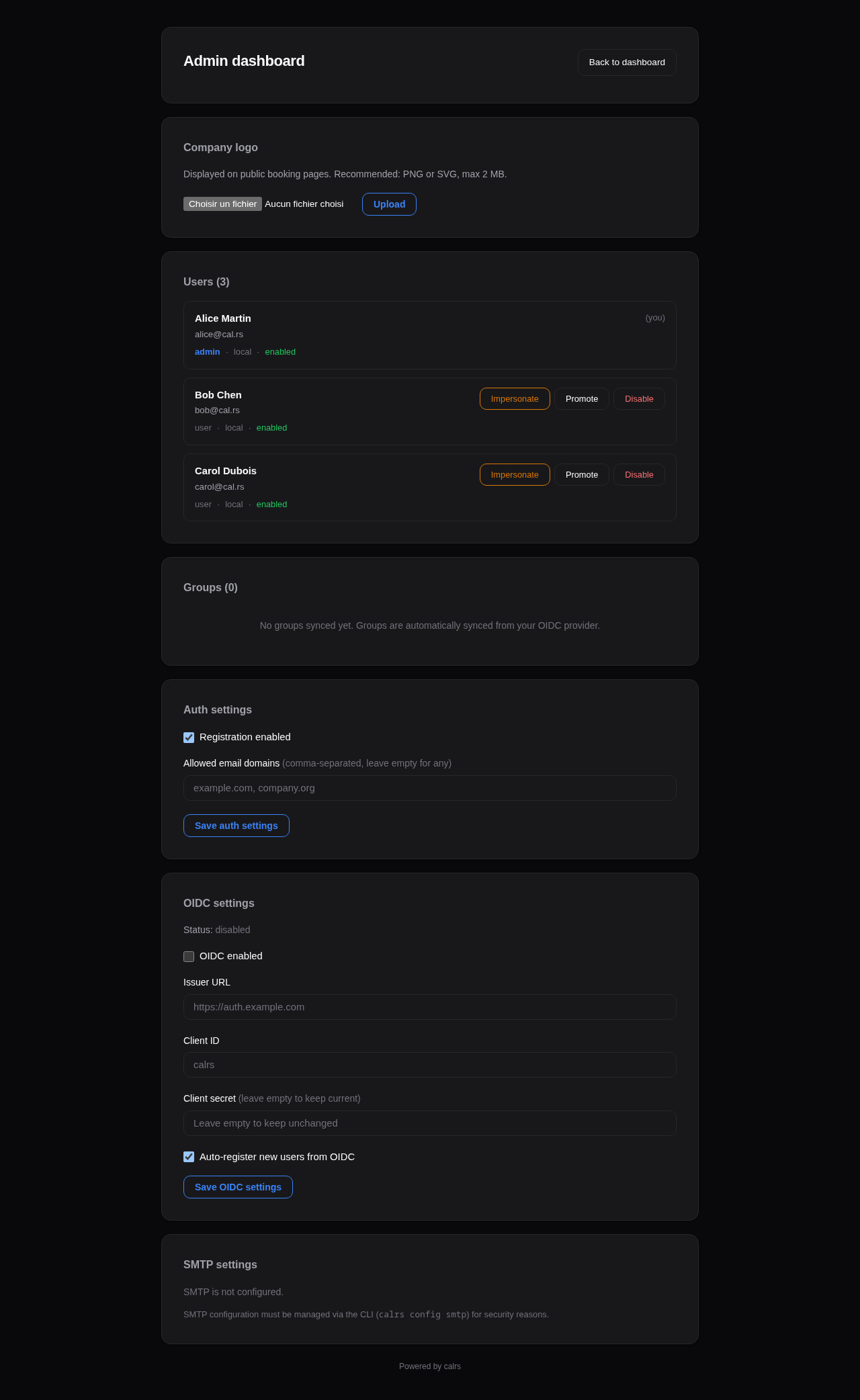
User management
Lists all registered users with:
- Name, email, username
- Role (admin/user)
- Status (enabled/disabled)
- Teams and groups
Actions per user:
- Promote/Demote — toggle admin role
- Enable/Disable — disabled users cannot log in or receive bookings
- Impersonate — view the dashboard as that user (for troubleshooting)
Impersonation
Admins can impersonate any user to troubleshoot their view:
- Click Impersonate next to a user in the admin panel
- You are redirected to the dashboard, viewing it as that user
- A yellow banner at the top shows who you’re impersonating
- Click Stop impersonating to return to your own view
Impersonation uses a separate calrs_impersonate cookie (24-hour TTL). The real admin session is preserved.
Availability troubleshoot
For each event type, the dashboard offers a Troubleshoot link that opens a visual timeline at /dashboard/troubleshoot/{event_type_id}:
- Shows candidate slots for the next 7 days
- Displays why each slot is blocked (calendar event name, existing booking, buffer overlap)
- Helps debug availability issues when users report incorrect free/busy status
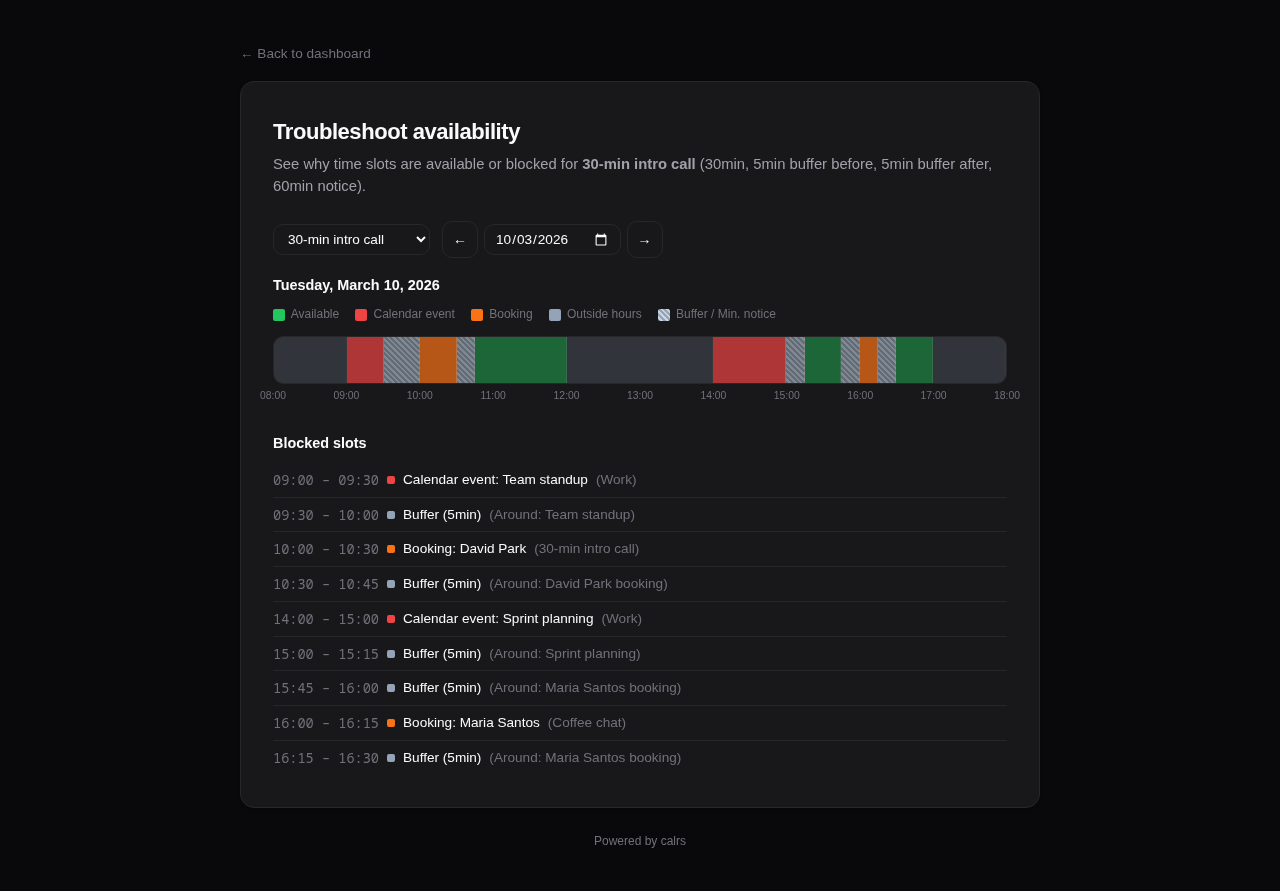
Authentication settings
- Registration — toggle open registration on/off
- Allowed domains — restrict registration to specific email domains (comma-separated) or allow any
OIDC configuration
- Enabled — toggle SSO login on/off
- Issuer URL — your OIDC provider’s base URL
- Client ID — the client ID registered with your provider
- Client secret — update the secret (current value is never displayed)
- Auto-register — automatically create users on first OIDC login
Google OAuth2
Admin → Auth → Google OAuth2 holds the instance-wide Google client ID and secret used when users connect Google Calendar. The same credentials are used to attach a Google Meet conference to a confirmed booking when an event type uses the Google Meet location. There is no extra Meet admin form. See Google Calendar.
Resources
The Resources card manages shared bookable resources (demo lab, meeting rooms): add a resource from its ICS feed URL, edit its optional CalDAV write-back settings and team allowlist, force a sync with Sync now, and verify write access with Test write. A failed feed sync is flagged here with the last error. See Shared Resources for details.
SMS settings
The SMS settings card configures the instance’s SMS gateway: pick Twilio, GatewayAPI, seven.io, or a generic webhook, and the form relabels its fields for that vendor. The same card holds the daily message limit, today’s usage and cost, and the policy controlling whether non-admins may enable SMS on their own event types.
Test gateway sends a real message to a number you give it, or verifies the credentials for free when you leave the field empty and the gateway supports it.
SMS spends real money on a public form, so the card also warns when SMS is configured without a captcha. See SMS Notifications for the setup steps and for keeping the bill bounded.
SMTP status
Shows whether SMTP is configured and the current sender address. SMTP is configured via CLI (calrs config smtp) or by editing the database directly.
Deployment
Docker / Podman (recommended)
Pre-built images are available on GitHub Container Registry for amd64 and arm64:
docker run -d --name calrs \
  -p 3000:3000 \
  -v calrs-data:/var/lib/calrs \
  -e CALRS_BASE_URL=https://cal.example.com \
  ghcr.io/olivierlambert/calrs:latest
Podman works as a drop-in replacement — just use
podmaninstead ofdockerin all commands. The Containerfile (Dockerfile) is compatible with both runtimes.
To pin to a specific version: ghcr.io/olivierlambert/calrs:0.14.0
The image uses a multi-stage build:
- Builder:
rust:slim-trixie— compiles the release binary - Runtime:
debian:trixie-slim— minimal image with onlyca-certificates - Runs as unprivileged
calrsuser - Data stored in
/var/lib/calrs - Templates bundled at
/opt/calrs/templates/
To build from source instead: docker build -t calrs .
Docker Compose / Podman Compose
services:
  calrs:
    image: ghcr.io/olivierlambert/calrs:latest
    ports:
      - "3000:3000"
    volumes:
      - calrs-data:/var/lib/calrs
    environment:
      - CALRS_BASE_URL=https://cal.example.com
    restart: unless-stopped

volumes:
  calrs-data:
Works with both docker compose and podman-compose.
RPM (RHEL / Fedora)
Community-maintained RPM packages are published on Copr by @wallon-ines for Enterprise Linux 9 and 10:
# Enable the repo (RHEL 9/10, Rocky, AlmaLinux, ...)
sudo dnf copr enable missd/calrs
sudo dnf install calrs

# Start the service
sudo systemctl enable --now calrs
- Copr repository: https://copr.fedorainfracloud.org/coprs/missd/calrs/
- RPM spec source: https://gitlab.famillewallon.com/rpm-packages/calrs
These packages are not maintained by the calrs project itself; for issues with the package (versioning, dependencies, systemd unit), reach out via the Copr/GitLab links above.
Binary + systemd
# Build from source
cargo build --release

# Install binary and templates
sudo cp target/release/calrs /usr/local/bin/
sudo cp -r templates /var/lib/calrs/templates

# Create a system user
sudo useradd -r -s /bin/false -m -d /var/lib/calrs calrs

# Install the service
sudo cp calrs.service /etc/systemd/system/
sudo systemctl daemon-reload
sudo systemctl enable --now calrs
Edit /etc/systemd/system/calrs.service to set CALRS_BASE_URL.
systemd service
The included calrs.service has security hardening:
NoNewPrivileges=trueProtectSystem=strictProtectHome=trueReadWritePaths=/var/lib/calrsPrivateTmp=trueProtectKernelTunables=trueProtectControlGroups=trueRestart=on-failurewith 5-second delay
From source (development)
cargo build --release
calrs serve --port 3000
Then register at http://localhost:3000 — the first user becomes admin.
Reverse proxy
calrs listens on port 3000 by default. Put nginx or caddy in front for TLS.
nginx example
server {
    listen 443 ssl http2;
    server_name cal.example.com;

    ssl_certificate /etc/letsencrypt/live/cal.example.com/fullchain.pem;
    ssl_certificate_key /etc/letsencrypt/live/cal.example.com/privkey.pem;

    location / {
        proxy_pass http://127.0.0.1:3000;
        proxy_set_header Host $host;
        proxy_set_header X-Real-IP $remote_addr;
        proxy_set_header X-Forwarded-For $proxy_add_x_forwarded_for;
        proxy_set_header X-Forwarded-Proto $scheme;
    }
}
Caddy example
cal.example.com {
    reverse_proxy localhost:3000
}
Environment variables
| Variable | Description | Default |
|---|---|---|
CALRS_DATA_DIR | SQLite database directory | /var/lib/calrs (Docker/systemd) or XDG (dev) |
CALRS_BASE_URL | Public URL (required for OIDC callbacks and email action links) | http://localhost:3000 |
CALRS_ALLOW_PRIVATE_HOSTS | Comma-separated hostnames allowed to resolve to private IPs for CalDAV/EWS (SSRF opt-out) | (none) |
RUST_LOG | Log level filter | calrs=info,tower_http=info |
CALRS_SMS_* | SMS gateway configuration, overriding the admin panel; see SMS Notifications | (none) |
CALRS_BASE_URL and CALRS_ALLOW_PRIVATE_HOSTS can also be set without environment variables — from the admin panel (System settings) or the CLI (calrs config general). The stored value is persisted in the database; when the matching environment variable is set it takes precedence at runtime. The other variables (CALRS_DATA_DIR, RUST_LOG, and CALRS_SECRET_KEY) are bootstrap settings and remain environment-only.
Observability
calrs uses structured logging via the tracing crate. All log output goes to stderr, captured by systemd journal or Docker logs.
Log levels
# Default (recommended)
RUST_LOG=calrs=info,tower_http=info

# Verbose (includes per-request details)
RUST_LOG=calrs=debug,tower_http=debug

# Errors only
RUST_LOG=calrs=error
What’s logged
| Category | Level | Events |
|---|---|---|
| Auth | info/warn | Login success/failure, registration, logout, OIDC login |
| Bookings | info | Created, cancelled, approved, declined, reminder sent |
| CalDAV | info/error | Sync completed, write-back/delete failures, source added/removed |
| Admin | info/warn | Role changes, user toggle, config updates, impersonation |
| debug/error | Delivery success/failure | |
| HTTP | info | Every request (method, path, status, latency) |
| Database | info | Migrations applied on startup |
Viewing logs
# systemd
journalctl -u calrs -f

# Docker
docker logs -f calrs
Backup
The entire state is in a single SQLite file (calrs.db). To back up:
sqlite3 /var/lib/calrs/calrs.db ".backup /path/to/backup.db"
Or simply copy the file when the server is stopped.
CLI Reference
Global options
--data-dir <PATH> Custom data directory (env: CALRS_DATA_DIR)
Commands
calrs source
Manage CalDAV calendar sources.
calrs source add [OPTIONS]
    --url <URL>           CalDAV server URL
    --username <USERNAME> CalDAV username
    --name <NAME>         Display name for this source
    --no-test             Skip the connection test

calrs source list

calrs source test <ID>    Test a connection (ID prefix match)

calrs source remove <ID>  Remove a source and all its data (ID prefix match)
calrs sync
Pull latest events from all CalDAV sources.
calrs sync [OPTIONS]
    --full    Full re-sync (ignore sync tokens)
Exits with status 1 when any source (or any calendar of a source) failed to sync, after listing the failures, so it can be used from cron or a monitoring check.
calrs calendar
View synced calendar events.
calrs calendar show [OPTIONS]
    --from <DATE>    Start date (YYYY-MM-DD)
    --to <DATE>      End date (YYYY-MM-DD)
calrs event-type
Manage bookable event types.
calrs event-type create [OPTIONS]
    --title <TITLE>              Event type title (required)
    --slug <SLUG>                URL slug (required)
    --duration <MINUTES>         Duration in minutes (required)
    --description <DESC>         Description
    --buffer-before <MINUTES>    Buffer before (default: 0)
    --buffer-after <MINUTES>     Buffer after (default: 0)

calrs event-type list

calrs event-type slots <SLUG> [OPTIONS]
    --days <DAYS>    Number of days to show (default: 7, clamped to the booking horizon)
slots consults any shared resources attached to the event type: slots where a required resource is busy are not printed, matching the web booking page.
If the event type sets a booking horizon, --days is clamped to it, so the CLI shows the same window the booking page offers. Asking for --days 30 on an event type with a 5-day horizon prints 6 days (today plus five).
calrs booking
Manage bookings.
calrs booking create <SLUG> [OPTIONS]
    --date <DATE>          Booking date (YYYY-MM-DD)
    --time <TIME>          Start time (HH:MM)
    --name <NAME>          Guest name
    --email <EMAIL>        Guest email
    --timezone <TZ>        Guest timezone (default: UTC)
    --notes <NOTES>        Optional notes

calrs booking list [OPTIONS]
    --upcoming    Show only upcoming bookings

calrs booking cancel <ID>    Cancel a booking (ID prefix match)
cancel marks the booking cancelled, sends the cancellation emails, deletes the event from the host’s CalDAV write-back calendar, and releases any shared resource reservation from the resource’s CalDAV calendar(s).
calrs config
Configure SMTP, authentication, and OIDC.
calrs config smtp [OPTIONS]
    --host <HOST>           SMTP server hostname
    --port <PORT>           SMTP port (default: 587)
    --username <USERNAME>   SMTP username (omit for an unauthenticated relay)
    --from-email <EMAIL>    Sender email address
    --from-name <NAME>      Sender display name
    --tls-mode <MODE>       starttls (default), tls, or none

calrs config show           Display current configuration

calrs config smtp-test <EMAIL>   Send a test email

calrs config auth [OPTIONS]
    --registration <BOOL>        Enable/disable registration
    --allowed-domains <DOMAINS>  Comma-separated domains or "any"

calrs config oidc [OPTIONS]
    --issuer-url <URL>        OIDC issuer URL
    --client-id <ID>          Client ID
    --client-secret <SECRET>  Client secret
    --enabled <BOOL>          Enable/disable OIDC
    --auto-register <BOOL>    Auto-create users on first login
Relaying through a local MTA
Leaving the username empty configures an unauthenticated relay, which is how you send through a local MTA (Postfix, OpenSMTPD, Stalwart, Mailpit). calrs then attaches no credentials at all, rather than authenticating with an empty username, which such a relay rejects because it advertises no AUTH mechanism.
The TLS mode prompt accepts three values:
| Mode | Transport |
|---|---|
starttls (default) | Plain connection upgraded with STARTTLS, typically port 587 |
tls | Implicit TLS from the first byte, typically port 465 |
none | No encryption, typically port 25 |
Use none only for a relay on the same machine. calrs validates certificates
against a compiled-in Mozilla root bundle rather than the system trust store, so
a relay presenting a self-signed or private-CA certificate (Debian’s Postfix
default, for one) cannot be reached with starttls or tls either, and none
over the loopback is the way through. Mail sent this way, and any credentials
sent with it, cross the connection in the clear; calrs logs a warning if you
combine none with a username, or point it at a host that is not loopback.
The same applies to the CALRS_SMTP_* environment block, where only
CALRS_SMTP_HOST and CALRS_SMTP_FROM_EMAIL are required. A full local-relay
configuration is:
CALRS_SMTP_HOST=localhost
CALRS_SMTP_PORT=25
CALRS_SMTP_TLS_MODE=none
CALRS_SMTP_FROM_EMAIL=noreply@example.com
If the environment block sets no CALRS_SMTP_USERNAME while the database holds
SMTP credentials, the environment still wins and calrs relays unauthenticated.
It logs a warning once at startup when that happens, because the admin form
locks itself whenever the environment governs.
The two credential variables are not interchangeable when only one is present.
CALRS_SMTP_PASSWORD without CALRS_SMTP_USERNAME is an error: the password
can never be sent, so the configuration contradicts itself. A username without a
password is accepted and only warns, since a permissive relay may still
authenticate on the username alone, though in practice it usually means the
password never reached the process.
The equivalent from the CLI, with no prompts:
calrs config smtp --host localhost --port 25 --tls-mode none \
  --username '' --from-email noreply@example.com --from-name calrs
calrs resource
Probe resource calendar URLs before adding them as shared resources.
calrs resource probe [OPTIONS]
    --url <URL>           Resource calendar URL (ICS publish feed or CalDAV collection)
    --username <USERNAME> Username for authenticated CalDAV access (password prompted)
    --write-test          Write test: PUT a temporary event, verify it exists, then delete it
For CalDAV URLs the probe runs the full RFC 4791 discovery fallback. The write test confirms that reservation write-back will work with the given credentials.
calrs user
Manage users (admin operations).
calrs user create [OPTIONS]
    --email <EMAIL>    User email
    --name <NAME>      User display name
    --admin            Grant admin role

calrs user list

calrs user set-password <EMAIL>

calrs user promote <EMAIL>     Promote to admin

calrs user demote <EMAIL>      Demote to regular user

calrs user disable <EMAIL>     Disable user account

calrs user enable <EMAIL>      Enable user account
calrs serve
Start the web server.
calrs serve [OPTIONS]
    --port <PORT>    Port to listen on (default: 3000)
Architecture
This page gives the big picture. For a file-by-file map of the source (what each module under src/web/ and src/email/ owns, the key concepts and where to add a page, an email, a string or a migration), see ARCHITECTURE.md in the repository.
Project structure
calrs/
├── Cargo.toml              Package manifest
├── Dockerfile              Multi-stage Docker build
├── calrs.service           systemd unit file
├── migrations/             SQLite schema (incremental migrations, registered in src/db.rs)
├── templates/              Minijinja HTML templates
│   ├── base.html           Base layout + CSS (light/dark mode)
│   ├── auth/               Login, registration
│   ├── dashboard_base.html Sidebar layout (all dashboard pages extend this)
│   ├── dashboard_overview.html   Overview with stats
│   ├── dashboard_event_types.html Event types listing
│   ├── dashboard_bookings.html   Bookings listing
│   ├── dashboard_sources.html    Calendar sources
│   ├── dashboard_teams.html      Teams listing
│   ├── dashboard_internal.html   Internal/organization event types
│   ├── admin.html          Admin panel
│   ├── settings.html       Profile & settings (avatar, title, bio)
│   ├── event_type_form.html  Create/edit event types
│   ├── invite_form.html    Invite management for private event types
│   ├── source_form.html    Add CalDAV source
│   ├── source_test.html    Connection test / sync results
│   ├── source_write_setup.html Write-back calendar selection
│   ├── team_form.html      Create/edit team
│   ├── team_settings.html  Team settings (members, groups, danger zone)
│   ├── overrides.html      Date overrides per event type
│   ├── troubleshoot.html   Availability troubleshoot timeline
│   ├── profile.html        Public user profile
│   ├── team_profile.html   Public team page
│   ├── slots.html          Slot picker (timezone-aware)
│   ├── book.html           Booking form
│   ├── confirmed.html      Confirmation / pending page
│   ├── booking_approved.html     Token-based approve success
│   ├── booking_decline_form.html Token-based decline form
│   ├── booking_declined.html     Token-based decline success
│   ├── booking_cancel_form.html  Guest self-cancel form
│   ├── booking_cancelled_guest.html Guest self-cancel success
│   ├── booking_host_reschedule.html Host-initiated reschedule
│   ├── booking_reschedule_confirm.html Reschedule confirmation
│   └── booking_action_error.html Invalid/expired token error
├── docs/                   mdBook documentation
└── src/
    ├── main.rs             CLI entry point (clap)
    ├── db.rs               SQLite connection + migrations
    ├── models.rs           Domain types
    ├── auth.rs             Authentication (local + OIDC)
    ├── email/              SMTP email with .ics invites + HTML templates
    ├── rrule.rs            RRULE expansion (DAILY/WEEKLY/MONTHLY)
    ├── utils.rs            Shared utilities (iCal splitting/parsing)
    ├── caldav/mod.rs       CalDAV client (RFC 4791) + write-back
    ├── web/                Axum web server, one file per area
    └── commands/           CLI subcommands
        ├── source.rs
        ├── sync.rs
        ├── calendar.rs
        ├── event_type.rs
        ├── booking.rs
        ├── config.rs
        └── user.rs
Database
SQLite in WAL mode. Single file, zero ops. Foreign keys with ON DELETE CASCADE.
Core tables
| Table | Purpose |
|---|---|
accounts | User profiles (name, email, timezone) |
users | Authentication (password hash, role, username) |
sessions | Server-side sessions |
caldav_sources | CalDAV server connections |
calendars | Discovered calendars |
events | Synced calendar events (unique on uid + recurrence_id) |
event_types | Bookable meeting templates |
availability_rules | Per-event-type availability (day + time range) |
availability_overrides | Date-specific exceptions (blocked days, custom hours) |
bookings | Guest bookings |
booking_invites | Tokenized invite links for private/internal event types |
booking_attendees | Additional attendees per booking |
event_type_calendars | Per-event-type calendar selection (junction table) |
event_type_member_weights | Per-event-type round-robin priority weights |
smtp_config | SMTP settings |
auth_config | Registration, OIDC, theme settings |
groups | OIDC groups (identity sync from Keycloak) |
user_groups | Group membership |
teams | Unified teams (name, slug, visibility, invite_token) |
team_members | Team membership (role: admin/member, source: direct/group) |
team_groups | Links teams to OIDC groups for automatic member sync |
Web server
Axum 0.8 with Arc<AppState> shared state containing the SqlitePool and minijinja::Environment.
Route structure
| Route | Handler |
|---|---|
/auth/login, /auth/register | Authentication (redirects to dashboard if already logged in) |
/auth/oidc/login, /auth/oidc/callback | OIDC flow |
/dashboard | Overview with stats |
/dashboard/admin | Admin panel + impersonation |
/dashboard/event-types/* | Event type CRUD |
/dashboard/sources/* | CalDAV source management |
/dashboard/bookings/* | Booking actions (confirm, cancel) |
/dashboard/teams/* | Team CRUD |
/dashboard/teams/{id}/settings | Team settings (members, OIDC groups, danger zone) |
/dashboard/organization | Internal event types + invite link generation |
/dashboard/invites/{event_type_id} | Invite management for private event types |
/dashboard/troubleshoot/{id} | Availability troubleshoot timeline |
/booking/approve/{token} | Token-based booking approval (from email) |
/booking/decline/{token} | Token-based booking decline (from email) |
/booking/cancel/{token} | Guest self-cancellation |
/u/{username} | Public user profile |
/u/{username}/{slug} | Public slot picker |
/u/{username}/{slug}/book | Booking form + submit |
/team/{slug} | Public team page |
/team/{slug}/{event-slug} | Team event type booking |
/g/{group-slug} | Redirects to /team/{slug} (legacy) |
Middleware
| Layer | Purpose |
|---|---|
TraceLayer | Logs every HTTP request (method, path, status, latency) |
csrf_cookie_middleware | Sets calrs_csrf cookie on responses for CSRF protection |
CalDAV client
Minimal RFC 4791 implementation:
- PROPFIND — principal discovery, calendar-home-set, calendar listing
- REPORT — event fetch (calendar-query)
- PUT — write events to calendar
- DELETE — remove events from calendar
- OPTIONS — connection test
Handles absolute and relative hrefs, BlueMind/Apple namespace prefixes, tags with attributes.
Templates
Minijinja 2 with file-based loader. Templates extend base.html which provides:
- CSS custom properties for theming
- Dark mode via
prefers-color-scheme - Responsive layout
- No JavaScript framework — vanilla JS only where needed (timezone detection, provider presets, CSRF token injection)
Lettre for SMTP with STARTTLS. All emails are HTML with plain text fallback (multipart/alternative). ICS generation is hand-crafted (no icalendar crate dependency for generation):
METHOD:REQUESTfor confirmationsMETHOD:PUBLISHfor guest confirmations (avoids mail server re-invites)METHOD:CANCELfor cancellations- Events include
ORGANIZER,ATTENDEE,LOCATION,STATUS
The approval request email includes Approve and Decline action buttons (table-based layout for email client compatibility). These link to token-based public endpoints that don’t require authentication.
Authentication flow
Local
- Registration/login form → POST with email + password
- Password verified with Argon2
- Session created in SQLite → session ID in HttpOnly cookie
- Extractors (
AuthUser,AdminUser) validate session on each request
OIDC
- User clicks “Sign in with SSO”
- Redirect to OIDC provider with PKCE challenge
- Provider redirects back with authorization code
- calrs exchanges code for tokens
- Extracts email, name, groups from ID token
- Links to existing user by email or creates new user
- Session created as with local auth
Testing
calrs has an automated test suite with 219 tests, run on every push and pull request via GitHub Actions.
What’s tested:
| Area | Examples |
|---|---|
| RRULE expansion | DAILY/WEEKLY/MONTHLY recurrence, INTERVAL, UNTIL, COUNT, BYDAY, EXDATE |
| iCal parsing | Multi-VEVENT splitting, field extraction, RECURRENCE-ID handling |
| Timezone conversion | TZID extraction, floating times, UTC suffix, all-day events |
| Email rendering | HTML/plain text output, cancellation attribution (host vs guest), .ics attachments |
| Availability engine | Free/busy computation, buffer times, minimum notice, conflict detection |
| Web server | Rate limiter (allow/block/reset/per-IP isolation) |
| Authentication | Argon2 password hashing roundtrip, hash uniqueness |
| Input validation | Booking name/email/notes/date validation, CSRF token verification |
| ICS regression | UTC timezone suffix, location field integrity, convert_to_utc |
# Run the full suite
cargo test

# Check formatting and lint
cargo fmt --check
cargo clippy -- -D warnings
Dependencies
Key crates:
| Crate | Purpose |
|---|---|
clap | CLI argument parsing |
axum | Web framework |
sqlx | Async SQLite |
reqwest | HTTP client (CalDAV) |
minijinja | HTML templating |
lettre | SMTP email |
chrono + chrono-tz | Time and timezone handling |
argon2 | Password hashing |
openidconnect | OIDC client |
icalendar | ICS parsing |
tracing + tracing-subscriber | Structured logging |
tower-http | HTTP request tracing (TraceLayer) |
Security
This page documents calrs’s security measures and known limitations.
Authentication
- Password hashing — Argon2 with random salt (via the
argon2+password-hashcrates). Passwords are never stored in plaintext. - Sessions — 32-byte random tokens (cryptographically secure via
OsRng), stored server-side in SQLite with 30-day TTL. - Cookie flags — All session cookies use
HttpOnly; Secure; SameSite=Lax. TheSecureflag ensures cookies are only sent over HTTPS. - OIDC — Authorization code flow with PKCE, state validation, and nonce verification. Tested with Keycloak.
Rate limiting
Login attempts are rate-limited per IP address:
- 10 attempts per 15-minute window
- After the limit, further attempts return an error without checking credentials
- The client IP is read from the
X-Forwarded-Forheader (set by your reverse proxy)
Important: Make sure your reverse proxy sets
X-Forwarded-Forcorrectly. Without it, rate limiting falls back to a single “unknown” bucket and won’t be effective.
Nginx
proxy_set_header X-Forwarded-For $proxy_add_x_forwarded_for;
Caddy
Caddy sets X-Forwarded-For automatically.
Booking endpoints
Booking submissions are rate-limited per IP address:
- 10 attempts per 5-minute window
- Applies to all booking handlers (user, team, and legacy)
CSRF protection
All POST forms are protected against cross-site request forgery using the double-submit cookie pattern:
- A
calrs_csrfcookie is set automatically on every response (via middleware) - Client-side JavaScript reads the cookie and injects a hidden
_csrffield into all POST forms - On submission, the server verifies that the cookie value matches the form field
- Mismatches return a
403 Forbiddenresponse
This protects all 31 POST endpoints including booking submissions, settings changes, admin actions, and authentication forms. Multipart forms (avatar/logo upload) pass the token via query parameter.
The cookie uses SameSite=Lax and is intentionally NOT HttpOnly so the client-side script can read it.
Input validation
All user-submitted data is validated server-side:
- Booking forms — name (1–255 chars), email (format + length), notes (max 5,000 chars), date (max 365 days in the future)
- Registration — name (1–255 chars), email format and length validation
- Settings — name length, booking email format validation
- Avatar upload — strict content-type whitelist (JPEG, PNG, GIF, WebP only)
- HTML templates —
maxlengthattributes on form inputs (defense in depth)
ICS injection protection
User-supplied values (guest name, email, event title, location, notes) are sanitized before being inserted into .ics calendar invites:
- Carriage returns (
\r) and newlines (\n) are stripped to prevent ICS field injection - Semicolons and commas are escaped per RFC 5545
This prevents attackers from injecting arbitrary iCalendar properties (e.g., extra attendees, recurrence rules) through booking form fields.
SQL injection
All database queries use parameterized bindings via sqlx. No SQL is constructed through string concatenation.
XSS (cross-site scripting)
All HTML output is rendered through Minijinja, which auto-escapes all template variables by default. No |safe or |raw filters are used.
Double-booking prevention
A SQLite partial unique index prevents two bookings for the same event type and time slot:
CREATE UNIQUE INDEX idx_bookings_no_overlap
ON bookings(event_type_id, start_at)
WHERE status IN ('confirmed', 'pending');
Additionally, all booking handlers wrap the availability check and INSERT in a database transaction (BEGIN IMMEDIATE), preventing race conditions between concurrent requests.
Error handling
Web handlers use explicit error handling instead of panics. Template rendering failures, date parsing errors, and database errors return user-friendly HTTP error responses rather than crashing the server process.
Token-based actions
Certain actions can be performed without authentication, using single-use-like tokens:
- Cancel token — allows guests to cancel their booking via a link in the confirmation email
- Confirm token — allows hosts to approve or decline pending bookings via links in the approval request email
Tokens are UUID v4 (128-bit random), stored with unique indexes in the database. They are not invalidated after use (the booking status check prevents replay — a token for an already-confirmed booking shows “already approved”). These links should be treated as sensitive — anyone with the link can perform the action.
Known limitations
CalDAV credential storage
CalDAV and SMTP passwords are encrypted at rest using AES-256-GCM. The encryption key is auto-generated at $DATA_DIR/secret.key on first run, or can be provided via the CALRS_SECRET_KEY environment variable. Legacy hex-encoded passwords (from pre-v0.10.0) are auto-migrated to encrypted format on startup. Protect your secret.key file with filesystem permissions.
No brute-force account lockout
Rate limiting is per-IP, not per-account. A distributed attack from many IPs would not be rate-limited. Consider using fail2ban or your reverse proxy’s rate limiting for additional protection.
SSRF (server-side request forgery)
CalDAV source URLs are user-supplied. validate_caldav_url() blocks URLs whose hostname resolves to a private or reserved IP range (loopback, RFC1918, link-local, ULA, etc.) before any HTTP request is issued.
This check resolves the hostname once at validation time, so a DNS-rebinding attacker who answers the initial lookup with a public IP and a subsequent lookup (during the actual HTTP fetch) with a private IP can bypass the guard. Mitigating this purely at the application layer would require inspecting the connected socket’s peer address after every TCP handshake, which is outside the scope of the current implementation. The recommended deployment posture is therefore an egress firewall that prevents calrs from reaching RFC1918 / link-local ranges regardless of what DNS returns.
Allowing private CalDAV hosts (self-hosting)
Self-hosted deployments often run calrs and the CalDAV server on the same private network (e.g. a docker-compose stack where http://radicale:5232 resolves to an RFC1918 address). To permit specific hostnames to resolve to private/reserved IPs, configure a comma-separated allowlist of hostnames (or literal IPs). Two ways, in order of precedence:
- Environment variable (takes precedence — ops override):
CALRS_ALLOW_PRIVATE_HOSTS=radicale,nextcloud.local,127.0.0.1 - Admin UI / CLI (persisted in the DB, used when the env var is unset):
- Admin panel → System settings → Private-host allowlist
calrs config general --allow-private-hosts radicale,nextcloud.local,127.0.0.1
When the environment variable is set it overrides the stored value (the admin panel shows a “set by environment” badge), and neither the admin panel nor calrs config general will write that field to the database — they refuse and say so. That is deliberate: a value stored while the env var was set would sit dormant and then silently become the effective allowlist the day the variable is removed. Change it where it is set, or unset the variable first. Matching is case-insensitive and exact (no wildcards or subdomain matching). Only the listed hosts bypass the private-IP check; every other host is still validated. Keep this list as small as possible, scheme validation (http/https only) still applies.
In a trusted multi-user deployment (e.g., behind OIDC) this is low risk. For public-registration instances, configure egress filtering at the network level.
Recommendations for production
- Always use HTTPS — the
Securecookie flag requires it - Set
CALRS_BASE_URLto your public HTTPS URL - Configure your reverse proxy to set
X-Forwarded-Forcorrectly - Restrict filesystem access to the data directory (contains the SQLite database with credentials)
- Disable registration if using OIDC (
calrs config auth --registration false) - Keep calrs updated for security patches