Booking Flow
Guest experience
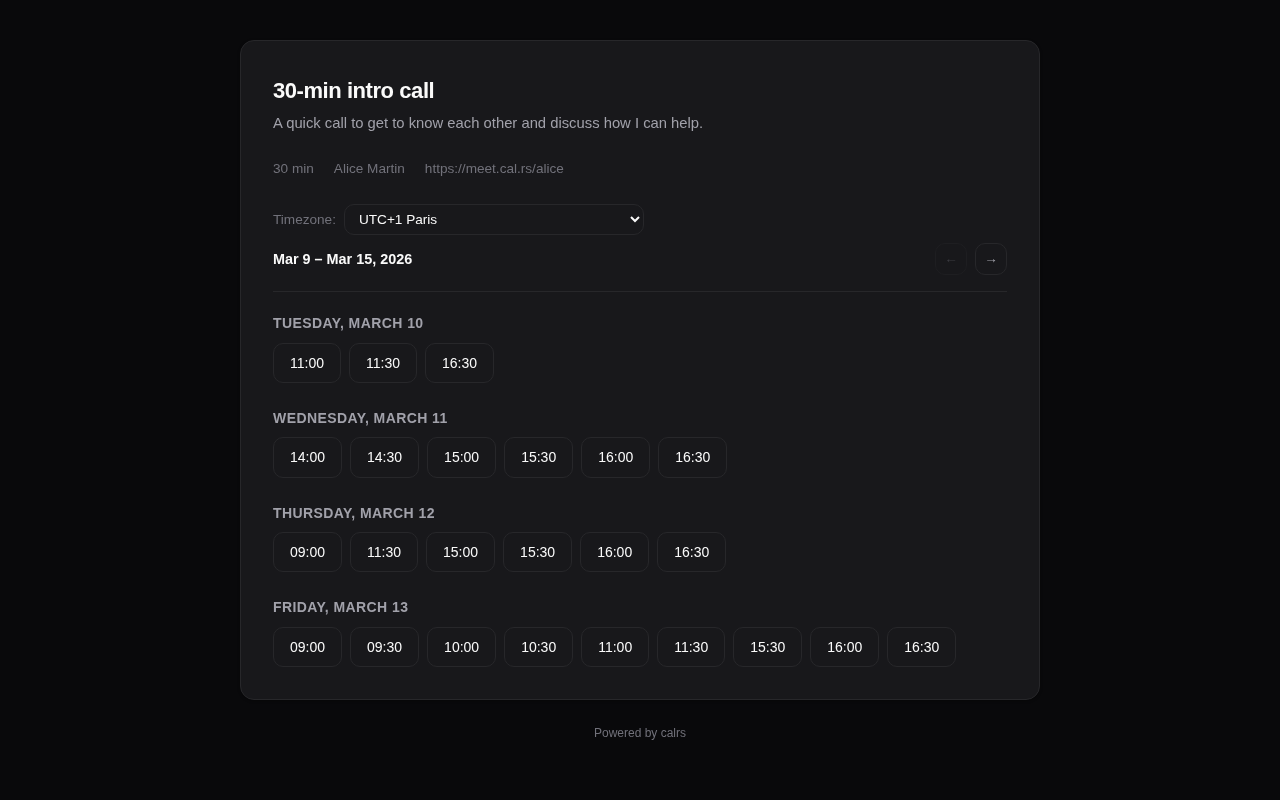
- Visit the booking page —
/u/host/meeting-slug(or via an invite link for private event types, or/u/host+other/slugfor dynamic group links) - Pick a timezone — auto-detected from the browser, changeable via dropdown
- Browse available slots — displayed as a week view, navigate with Previous/Next buttons
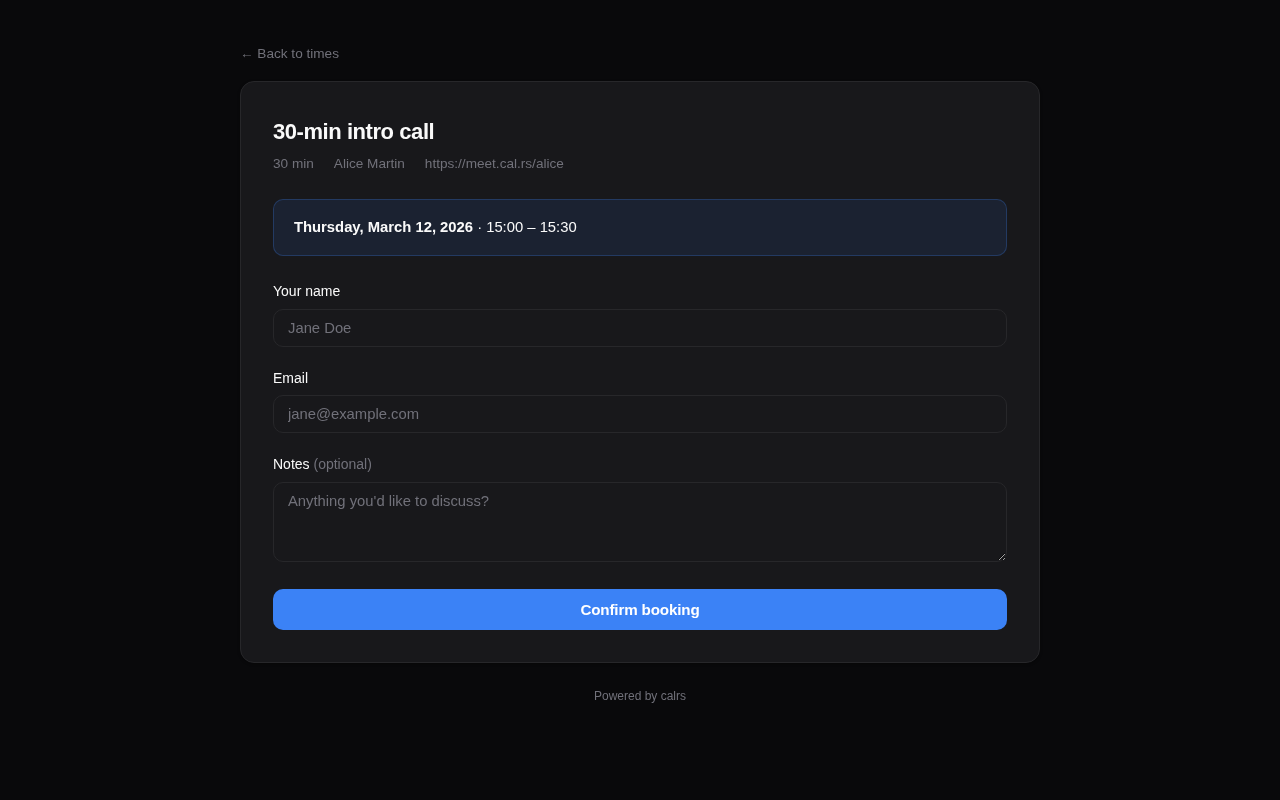
- Click a slot — opens the booking form
- Fill in details — name, email, optional notes (pre-filled from invite if applicable)
- Add guests — optionally invite additional attendees (if the event type allows it)
- Submit — booking is created
- Confirmation page — shows booking summary (including any additional attendees)
- Email — guest and any additional attendees receive a confirmation email with an
.icscalendar invite attached
Timezones and existing installations
New bookings store UTC timestamps. Availability rules remain in the event type’s
IANA timezone, and guests see times in their selected timezone. The dashboard
uses the host’s profile timezone. Changing those settings does not move a new
booking’s actual start or end time; the server’s timezone does not determine it.
The CLI interprets booking create --date ... --time ... in --timezone (UTC by
default), then checks availability in the event timezone.
Upgrading adds a storage-version field automatically. Existing bookings retain their original timestamps and legacy interpretation: there is no bulk conversion, manual migration, notification, or calendar rewrite. Historical timezone mistakes are not repaired automatically. Rescheduling an existing booking stores the newly selected time in UTC; cancelling it leaves its timestamps unchanged.
Back up the database before upgrading as usual. Older binaries do not understand the new storage format; reverting to one after creating UTC bookings requires restoring the pre-upgrade backup, which loses bookings created since that backup.
Ambiguous or nonexistent local start times during daylight-saving transitions are rejected instead of silently choosing an instant. Calendar attachments for new bookings carry both exact UTC endpoints, including across midnight and clock changes. Meeting-provider webhooks likewise receive explicit UTC timestamps for new bookings (legacy bookings retain the previous format).
Clock changes
Durations and minimum notice use elapsed time. The slot picker omits nonexistent or ambiguous local starts, since booking forms do not carry a DST-fold marker. Conflict checks retain the existing wall-clock availability engine: a UTC booking that crosses a backward clock change blocks a conservative envelope covering both occurrences of the repeated hour. This can hide otherwise free slots around the transition, but prevents a reversed local interval from allowing double-booking. Host email text and calendar attachments use the exact UTC endpoints for new rows.
Booking statuses
| Status | Description |
|---|---|
confirmed | Booking is active. Slot is blocked. Emails sent. |
pending | Awaiting host approval (when requires_confirmation is on). Blocks the slot unless the event type turns that off. |
cancelled | Cancelled by host or guest. Slot is freed. |
declined | Declined by host, or expired before the host answered. |
Confirmation mode
When an event type has requires confirmation enabled:
- Guest submits booking → status is
pending - Guest receives a “pending” email (no
.icsyet) - Host receives an “approval request” email with Approve and Decline buttons
- Host can approve/decline in two ways:
- From the email — click the Approve or Decline button (no login required, token-based)
- From the dashboard — go to Pending approval section and click Confirm or Decline
- On confirm: status becomes
confirmed, guest receives confirmation email with.ics, booking is pushed to CalDAV. Auto meeting links (Jitsi, webhook, Google Meet) are generated at this moment, not while the booking is pending. - On decline: status becomes
declined, guest receives a decline notification with optional reason
Before confirming, both approval paths check that the host is still free at that time (the assigned member for round-robin, every member for collective): a calendar event or a confirmed booking that appeared in the meantime makes the approval fail with an explanation instead of double-booking the host. Other pending requests do not count here, so when two requests overlap the host can approve either one; the other is then refused.
Pending requests hold the slot
By default a pending request blocks its host’s time exactly like a confirmed booking: the slot disappears from the booking page, and overlapping slots on the host’s other event types disappear too, so a second guest is never offered a time that is already requested. Uncheck Pending requests block the time slot in the event type form to let other guests request the same time (the first approved wins; the database still refuses two bookings on the exact same slot).
Request expiry
Request expiry (never, 4, 24, 48 or 72 hours; 24 for new event types, never for event types that existed before the setting) bounds how long a request may wait. The deadline is set when the request is made. It never runs later than the latest moment another guest could still book the slot (start minus the minimum notice), since expiring after that point frees nothing. A request made inside that window (the guest booked right at the minimum notice) keeps the expiry, capped by the meeting start, rather than lapsing minutes later. A guest reschedule that puts the booking back to pending restarts it.
- Halfway to the deadline, the host gets one reminder with the Approve and Decline buttons.
- At the deadline the request is declined, never accepted. The guest receives an email in the language they booked in (and an SMS when the event type collects phone numbers) asking them to pick another time, with a link to the booking page when the event type is public and
CALRS_BASE_URLis set. The host gets a short notice.
The check runs in the same background task as reminders, once a minute.
Note: The email action buttons require
CALRS_BASE_URLto be set. Without it, the host must use the dashboard.
Cancellation
From the dashboard, click Cancel on an upcoming booking:
- Optionally enter a reason
- Confirm the cancellation
- Both guest and host receive cancellation emails with a
METHOD:CANCEL.icsattachment - If the booking was pushed to CalDAV, the event is deleted from the calendar
Guest self-cancellation
Guests can cancel their own bookings via a link in the confirmation email:
- Click the “Cancel booking” link in the email
- Optionally enter a reason
- Confirm the cancellation
- Both guest and host are notified
The cancellation email correctly attributes who cancelled (host vs guest).
Reschedule
Bookings can be rescheduled without cancelling and rebooking. Both guests and hosts can initiate a reschedule.
Guest reschedule
Guests can reschedule their booking via the reschedule link in the confirmation or pending email:
- Click the “Reschedule” button in the email
- Pick a new time slot from the slot picker (the current booking’s slot is freed so it remains available)
- Confirm the new time
- The booking moves to
pendingstatus — the host must approve via email or dashboard. The request expiry starts over from the reschedule. - If the booking was previously pushed to CalDAV, the event is removed (re-pushed on approval)
Host reschedule
Hosts can reschedule from the dashboard:
- Go to Dashboard > Bookings and click Reschedule on a booking
- Pick a new time slot
- Confirm the new time
- The booking stays
confirmed— no approval needed - The CalDAV event is updated in place (same UID). Google Meet bookings keep the existing Meet link; only the event times are patched.
- The guest receives a reschedule notification with the updated
.icsinvite
Token regeneration
After each reschedule, the reschedule_token, cancel_token, and confirm_token are regenerated. This invalidates any previous email links, ensuring only the latest links work.
Edge cases
- Already cancelled/declined bookings cannot be rescheduled (error page shown)
- Self-conflict is handled: the booking being rescheduled doesn’t block its own new slot
- Group bookings keep the original
assigned_user_id(no re-running round-robin) - Reminder state is reset:
reminder_sent_atis cleared so a new reminder is sent for the updated time
Notice window policy
By default, guests can cancel or reschedule via their tokenized email links at any time, including a few minutes before the meeting starts. This leaves hosts with same-day calendar holes that cannot be re-filled.
Per event type, you can require a minimum lead time before guests can take either action:
- Minimum notice to cancel — gates
/booking/cancel/{token}(both the form and the submission). - Minimum notice to reschedule — gates
/booking/reschedule/{token}(both the slot picker and the submission).
Each is set from the event type form with a numeric value plus a unit selector (minutes / hours / days). Empty means no restriction (the previous behaviour).
Within the configured window, the guest sees a friendly page showing the host’s contact email instead of a working form. The booking is unchanged. If the policy is set, it is also surfaced inline on the confirmation page and in the confirmation email so the guest is warned upfront.
The check applies to guest-side actions only. Hosts and admins can still cancel or reschedule from the dashboard at any time, since real-world emergencies often require host action on behalf of the guest. The notice window is not enforced on host paths.
Conflict detection
Before a booking is accepted, calrs checks for conflicts:
- Calendar events — from synced CalDAV sources
- Existing bookings — confirmed bookings on any event type
- Buffer times — the buffer before/after is included in the conflict window
- Minimum notice — slots too close to the current time are rejected
Additionally, a database-level unique index prevents two bookings from occupying the same slot, even if two guests submit simultaneously. On round-robin team event types the uniqueness is per assigned member, so two guests can book the same time as long as different members take the bookings.
CalDAV write-back
When a booking is confirmed (either directly or via approval), calrs can push the event to the host’s CalDAV calendar. For team event types the host is the assigned member (round-robin), or every eligible member (collective: enabled members with a non-zero per-event-type weight, the same set the slot grid checks). See CalDAV Integration > Write-back for setup.
The event’s ORGANIZER is the host: the assigned member, or for a collective booking the first eligible member by name, with every member’s name joined. A collective or dynamic group booking stores that organizer when it is created and keeps it for every later update (approval, reschedule, claim, retry), even if the team changes in the meantime: Google CalDAV refuses an update that changes an existing event’s organizer. Bookings made before calrs stored it (migration 070) still resolve it from the current roster.
Email notifications
If SMTP is configured, calrs sends emails at these moments:
| Event | Guest receives | Host receives |
|---|---|---|
| Booking confirmed | Confirmation + .ics REQUEST | Notification + .ics REQUEST |
| Booking pending | “Awaiting confirmation” notice | Approval request with Approve/Decline buttons |
| Booking declined | Decline notice (with optional reason) | — |
| Booking cancelled | Cancellation + .ics CANCEL | Cancellation + .ics CANCEL |
| Booking rescheduled (by host) | Reschedule notification + updated .ics | — |
| Reschedule request (by guest) | “Pending” notice with updated time | Reschedule approval request with Approve/Decline buttons |
| Booking reminder | Reminder with cancel button | Reminder with details |
| Invite sent | Invite email with booking link | — |
All emails are sent as HTML with plain text fallback. They include event title, date, time, timezone, location, and notes. The HTML templates are responsive and support dark mode in email clients that honor prefers-color-scheme.
Email language
Every email is written in its reader’s language, in any of the languages calrs ships:
- Guests (and the additional attendees they add) get the language the booking page was shown in when they booked, whoever triggers the email. That is the guest’s browser language, unless the host chose Always my language under Public booking page language in Profile & Settings: their own booking pages (
/u/{username}, and the legacy/{slug}routes), and so their guests’ emails, then use the host’s own saved language. Being logged in to calrs does not change the language of a booking page: it follows the browser the booking is made from, so a staff member booking on a client’s behalf books in their own browser’s language, not their saved calrs preference. To reach a client in another language, book from a browser set to it, or send the client the booking link. The email goes out whoever triggers it: the guest themselves, the host approving, declining, cancelling or asking for a new time, the reminder task, or a calendar sync noticing the host deleted the event. - Hosts, team members and watchers get the language they chose in Profile & Settings. With none set, they get English. On a collective team booking each member receives the host email in their own language.
- The guest’s cancel and reschedule pages use that same language, so they match the emails. The host’s approve and decline pages use the host’s saved language (for a collective booking, which several members can approve, the browser’s), and claim pages the watcher’s.
- Invites follow the language of the person sending them, who also writes the optional personal message.
The admin SMTP test email is English.
Sender and replies
Every email leaves from the configured sender address, so SPF, DKIM and DMARC keep aligning with the instance’s domain. What changes is the name the guest sees and where their reply goes:
- Guest emails (confirmation, the copies to additional attendees, pending, reminder, cancellation, decline, expired request, pick a new time, reschedule, invite) show the host’s name followed by the configured sender name, joined in the email’s language:
Bob Smith via Acme Scheduling, or justBob Smithwhen no sender name is set. They carry aReply-Towith the host’s booking email (their account email when no booking email is set), so a guest who answers the email reaches the host directly. - On a round-robin booking the host is the assigned member. On a collective or dynamic group booking the name is the joined roster (
Alice & Bob via ...), and replies go to the member the calendar invite names as organizer, the same on every email of that booking even when the team changes after it was made, and whoever cancels, declines or reschedules it. Bookings made before migration 070 have no stored organizer and still resolve it from the current roster, so a team change can move theirs. - Invites take the
Reply-Tofrom the inviting user’s account email, never their booking email: the inviter picks the recipients, and the booking email is not verified. - Host, team member, watcher and admin emails keep the configured sender name and have no
Reply-To.
A host whose booking email is on a free-mail domain while the instance sends from its own domain may see some guest emails scored higher by spam filters (SpamAssassin’s FREEMAIL_FORGED_REPLYTO). A booking email on the organization’s domain avoids it.
Timezone handling
- Guest’s timezone is auto-detected via
Intl.DateTimeFormatin the browser - A timezone dropdown lets the guest change it
- Slots are displayed in the guest’s selected timezone
- New bookings use UTC storage. Legacy bookings retain their existing timezone interpretation.
- The timezone is preserved across navigation (week picker, booking form)
CLI booking
calrs booking create intro \
  --date 2026-03-20 --time 14:00 \
  --name "Jane Doe" --email jane@example.com \
  --timezone Europe/Paris --notes "Let's discuss the project"