Admin Dashboard
The admin dashboard is available at /dashboard/admin for users with the admin role.
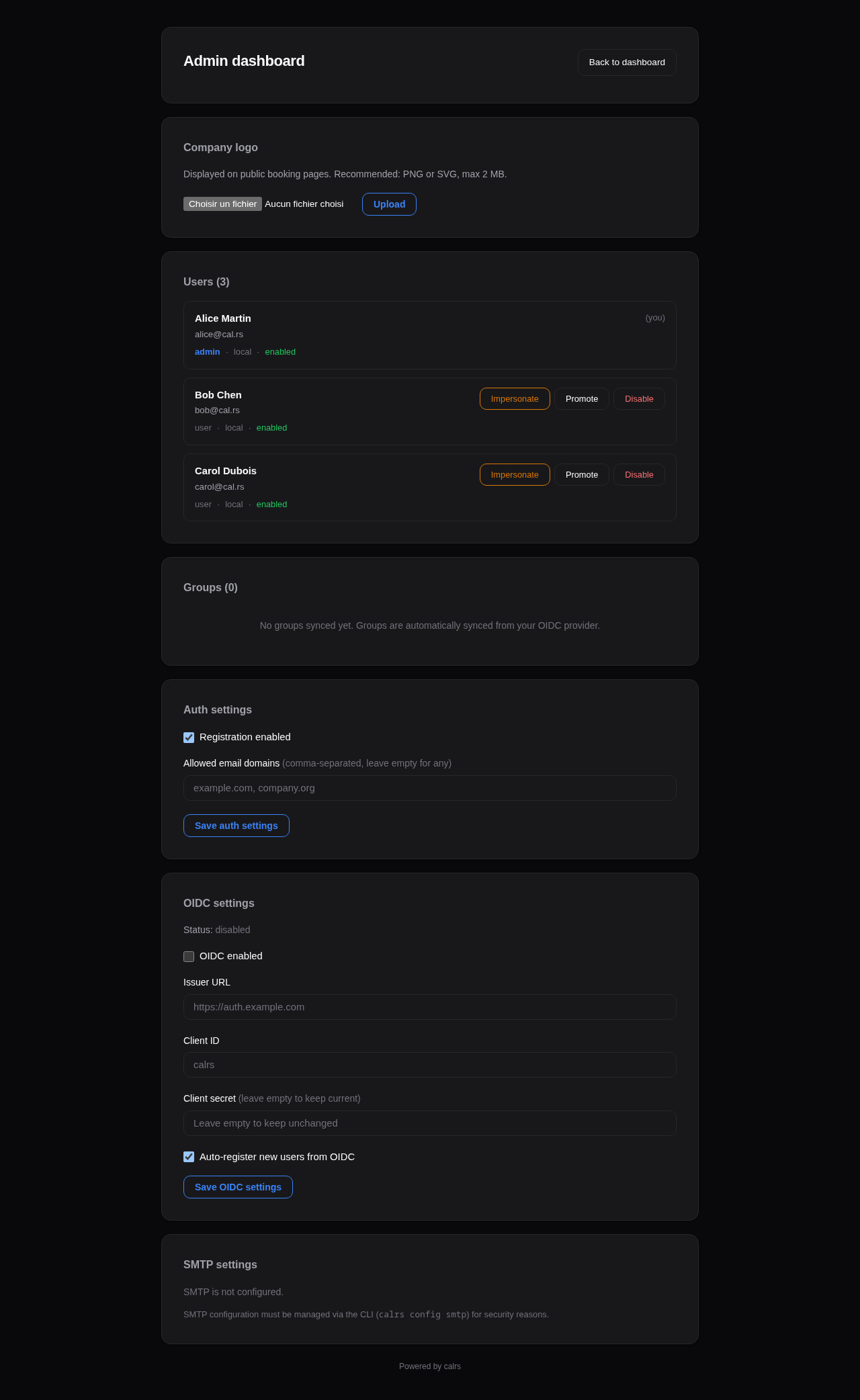
User management
Lists all registered users with:
- Name, email, username
- Role (admin/user)
- Status (enabled/disabled)
- Teams and groups
Actions per user:
- Promote/Demote — toggle admin role
- Enable/Disable — disabled users cannot log in or receive bookings
- Impersonate — view the dashboard as that user (for troubleshooting)
Impersonation
Admins can impersonate any user to troubleshoot their view:
- Click Impersonate next to a user in the admin panel
- You are redirected to the dashboard, viewing it as that user
- A yellow banner at the top shows who you’re impersonating
- Click Stop impersonating to return to your own view
Impersonation uses a separate calrs_impersonate cookie (24-hour TTL). The real admin session is preserved.
Availability troubleshoot
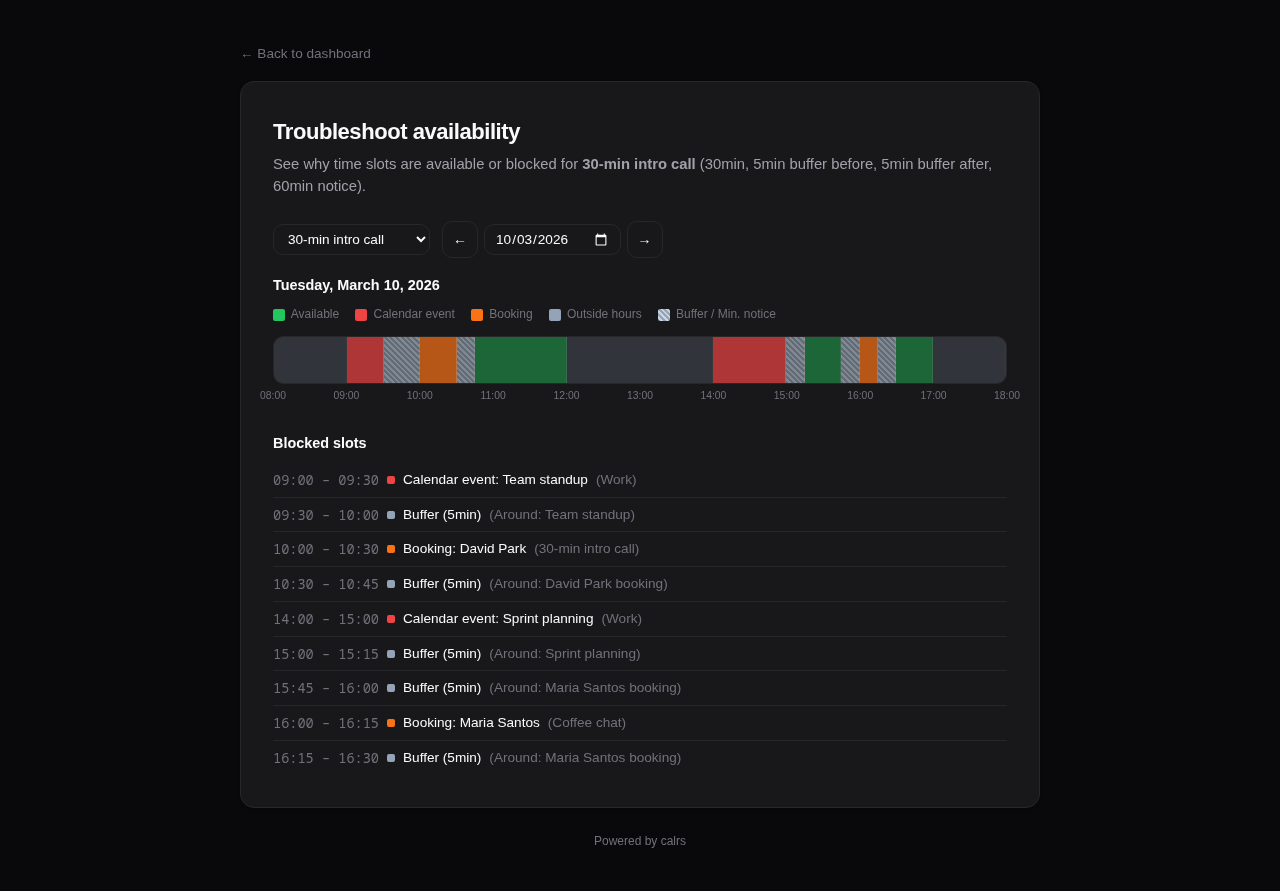
For each event type, the dashboard offers a Troubleshoot link that opens a visual timeline at /dashboard/troubleshoot/{event_type_id}:
- Shows candidate slots for the next 7 days
- Displays why each slot is blocked (calendar event name, existing booking, buffer overlap)
- Helps debug availability issues when users report incorrect free/busy status
Authentication settings
- Registration — toggle open registration on/off
- Allowed domains — restrict registration to specific email domains (comma-separated) or allow any
OIDC configuration
- Enabled — toggle SSO login on/off
- Issuer URL — your OIDC provider’s base URL
- Client ID — the client ID registered with your provider
- Client secret — update the secret (current value is never displayed)
- Auto-register — automatically create users on first OIDC login
Google OAuth2
Admin → Auth → Google OAuth2 holds the instance-wide Google client ID and secret used when users connect Google Calendar. The same credentials are used to attach a Google Meet conference to a confirmed booking when an event type uses the Google Meet location. There is no extra Meet admin form. See Google Calendar.
Resources
The Resources card manages shared bookable resources (demo lab, meeting rooms): add a resource from its ICS feed URL, edit its optional CalDAV write-back settings and team allowlist, force a sync with Sync now, and verify write access with Test write. A failed feed sync is flagged here with the last error. See Shared Resources for details.
SMS settings
The SMS settings card configures the instance’s SMS gateway: pick Twilio, GatewayAPI, seven.io, or a generic webhook, and the form relabels its fields for that vendor. The same card holds the daily message limit, today’s usage and cost, and the policy controlling whether non-admins may enable SMS on their own event types.
Test gateway sends a real message to a number you give it, or verifies the credentials for free when you leave the field empty and the gateway supports it.
SMS spends real money on a public form, so the card also warns when SMS is configured without a captcha. See SMS Notifications for the setup steps and for keeping the bill bounded.
SMTP status
Shows whether SMTP is configured and the current sender address. SMTP is configured via CLI (calrs config smtp) or by editing the database directly.